
You can overlap and merge multiple still images captured from a video in the order of the time code to create an image depicting the flow of a moving subject.
 Important
You can merge between 5 and 30 still images.
Still images corrected in the Correct Captured Frames window cannot be used. The original uncorrected still images will be used.
Use the still images captured from video recorded with a steady camera (fixed to a tripod, etc.) without zooming or adjusting focus while recording.
 Note
NoteRefer to "Creating and Printing Still Images from Videos" for details on how to capture still images.
Select the still images you want to merge from the Captured frame(s) area of the Video Frame Capture window.
Click Merge Frames in the Auto Frame Capture Settings area.
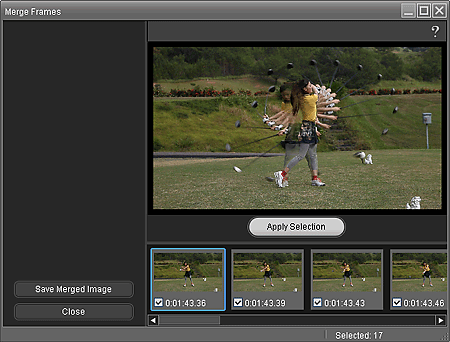
The Merge Frames window appears and the merged image appears in the Preview area.
 Note
NoteSee Help for details on the Merge Frames window.
Select the still images you want to merge if necessary.
NoteTo select or deselect a still image, click the thumbnail image or checkbox in the selected image area.
When still images are changed, click Apply Selection to merge the images again.
Click Save Merged Image.
When the Save dialog box appears, specify the save location and file name, then click Save.
NoteOnly JPEG/Exif data format is available for saving created image.
Click Close.
ImportantThe created image will be deleted if you exit before saving it.
NoteWhen the Movie Print window is displayed via Solution Menu EX, you can print the merged still images.
To print, specify the printer and media in the Print area, then click Print.
When you print from the Merge Frames window, images are automatically cropped.
When a full high definition and high definition video is used, large portions will be cut off from the left and right sides.
If you want to adjust the cropping area before printing, save the merged still image and print it from a function of Easy-PhotoPrint EX.
