
You can make fine adjustments to the overall brightness, contrast, etc. of images.
Select photos in the Select Images screen, then click  (Correct/Enhance Images).
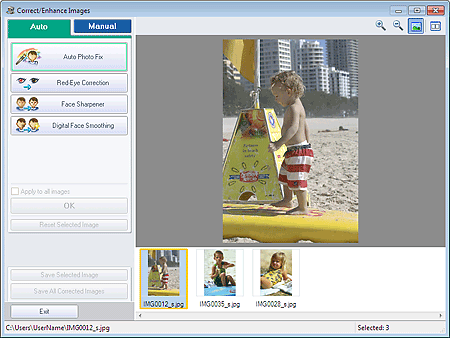
The Correct/Enhance Images window appears.
 Note
NoteYou can also display the Correct/Enhance Images window by clicking (Correct/Enhance Images) in the Layout/Print or Edit screen. In that case, only the image displayed in Preview can be adjusted.
See "Correct/Enhance Images Window" for details on the Correct/Enhance Images window.
Select the image you want to adjust from the thumbnail list in the Correct/Enhance Images window.
The image appears in Preview.
NoteIf only one image is selected, the thumbnail list does not appear below Preview.
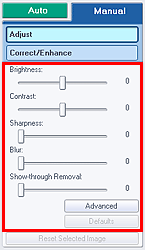
Click Manual, then click Adjust.
Move the slider of the item you want to adjust and set the effect level.
The following adjustments are available:
Brightness
Contrast
Sharpness
Blur
Show-through Removal
 Note
NoteClick  (Compare) to display the images before and after the adjustment side by side so that you can compare and check the result.
Click Advanced to make fine adjustments to the image brightness and color tone. See "Advanced" in the descriptions of the Correct/Enhance Images window for details.
Click Defaults to reset all adjustments.
Click Save Selected Image or Save All Corrected Images.
You can save adjusted images as new files.
NoteTo save only the image you like, click Save Selected Image. To save all images, click Save All Corrected Images.
Only JPEG/Exif data format is available for adjusted images.
Click Exit.
 Important
The adjustments will be lost if you exit before saving adjusted images.
