


You can change the background of each page.
 Important
You cannot change the background of the Stickers, Layout Print and PREMIUM Contents Print.
Click Background... in the Page Setup screen or select the page you want to change the background of in the Edit screen, then click  (Change Background).
 Note
NoteThe screen(s) for Album printing is (are) used as example(s) in the following descriptions. The screen(s) may vary depending on what you create.
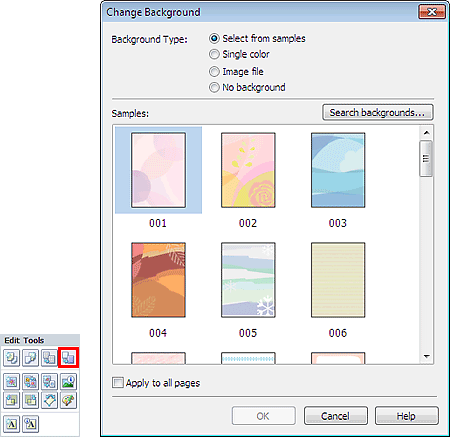
Select the type of background you want to use in the Change Background dialog box.
Select the image you want to use from Samples and click OK.
NoteSelect from samples will be displayed only if Album or Disc Label/Case Cover has been selected.
Various backgrounds are available on our website besides those saved in the application.
When Album has been selected, click Search backgrounds... to access the Canon website from which you can download additional materials for free.
Internet connection is required to access the website. Internet connection fees apply.
Exit Easy-PhotoPrint EX before installing backgrounds.
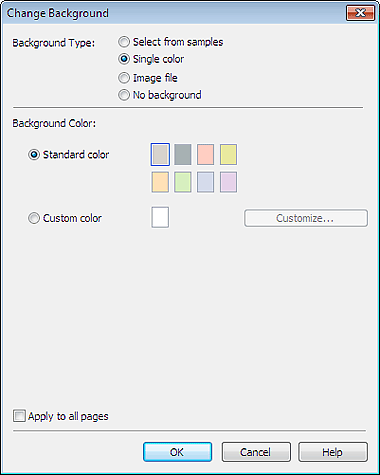
Select the color you want to use from Standard color or Custom color and click OK.
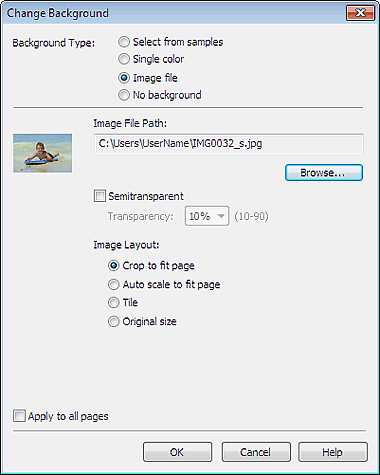
Set Image File Path and Image Layout, then click OK.
 Note
NoteFor Disc Label/Case Cover, when you select Image file and specify the Image File Path, Set Cropping Area... is displayed. Click it to display the Set Cropping Area dialog box in which you can specify the cropping area to suit the disc label or case cover size.
See Help for details on how to set the background in the Change Background dialog box.
