


You can add text to photos.
 Important
For PREMIUM Contents Print, you cannot enter text in the following cases.
There is no text box in the selected layout.
 (Add Text) is disabled.
Click (Add Text) in the Edit screen and drag the mouse over the area in which you want to add text.
For PREMIUM Contents Print, if you want to enter text in a preset text box, select it and click  (Edit Text Box).
 Note
NoteThe screen(s) for Album printing is (are) used as example(s) in the following descriptions. The screen(s) may vary depending on what you create.
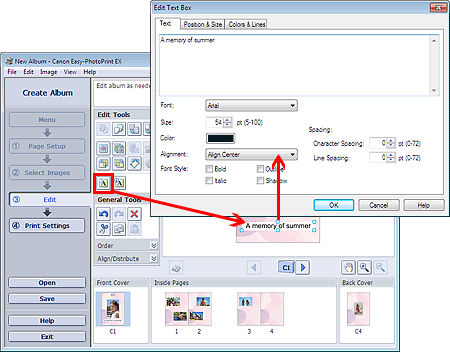
Select the Text tab in the Edit Text Box dialog box and enter text, then click OK.
NoteIn the Edit Text Box dialog box, you can change the position, angle and size of the text. You can also set the color and line of the text box. See Help for details.
To change the entered text, select the text box and click (Edit Text Box). The Edit Text Box dialog box appears. You can change the text.
Make the text arch is displayed in the Position & Size tab when Printable Disc is selected for Print Type in the Page Setup screen of Disc Label/Case Cover. Select this checkbox to place the text along the circumference of the disc. See Help for details.
