Solution Menu EX
Solution Menu EX is a software application that provides quick access to other software applications supplied with the machine, manuals, and online product information.
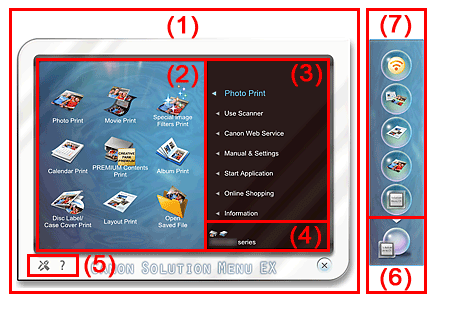
(1) Main Screen
The Main Screen of Solution Menu EX. Various Solution Menu EX compatible functions are displayed.
(2) Function Icon Area
Icons (with names) of the functions available from the menu item selected in the Category Menu area are displayed.
(3) Category Menu Area
A list of menu items available on Solution Menu EX is displayed.
Photo Print
Print photos taken with a digital camera.
Canon Web Service
Download content or materials for printing, from the website.
CREATIVE PARK PREMIUM
CREATIVE PARK PREMIUM is a premium content service available exclusively to users of genuine Canon inks for this machine.
Make sure that genuine Canon ink tanks are installed properly for all colors.
Manual & Settings
View the on-screen manual of the machine or set up the machine.
Start Application
Start the supplied software applications such as Easy-PhotoPrint EX and My Printer.
Online Shopping
Purchase consumables such as ink from the website.
Information
Find useful information on the machine.
(4) Registered Model Name Area
The printer/scanner model name registered in the Preferences dialog box is displayed.
(5) Setting Area
Click  (Preferences dialog box display) to display the Preferences dialog box.
Click  (Help) to display the Solution Menu EX's Help.
(6) Accessory Icon
You can display the Main Screen of Solution Menu EX, show or hide Shortcut menu, etc.
(7) Shortcut menu
You can add the icons of frequently used functions. Save frequently used applications, etc. to start them with one click from the Desktop Accessory without displaying the Main Screen.
 Important
-
The number and types of items/icons displayed vary depending on your region, the registered printer/scanner and the installed applications.
Starting Solution Menu EX
 Click Here: Solution Menu EX
 Note
Note-
Unless the default setting has been changed, Solution Menu EX starts automatically when you start up the computer.
-
From the Start menu, select All Programs > Canon Utilities > Solution Menu EX, then click Solution Menu EX.
-
If the Solution Menu EX Main Screen does not appear after starting Solution Menu EX, right-click
 (Accessory Icon) and select Show Main Screen.
 -
For details on operating Solution Menu EX, refer to the Solution Menu EX's Help.
-
The computer must be connected to the Internet to access the website for useful information, etc. Internet connection fees apply.
My Printer
With My Printer, you can display the printer driver setup window, and get information on what action to take if you have trouble with the operation.
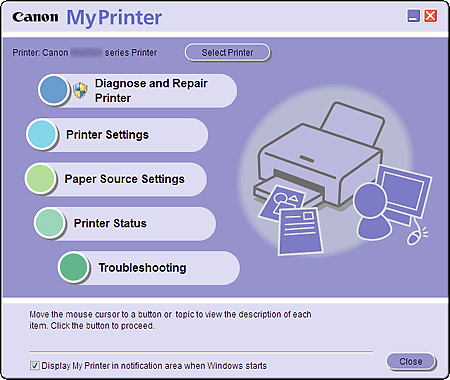
Starting My Printer
From the Start menu, select All Programs > Canon Utilities > My Printer, then click My Printer.
If you need to switch between users, be sure to exit My Printer beforehand.
Easy-WebPrint EX
Easy-WebPrint EX provides quick and easy printing of web pages on Internet Explorer.
You can print web pages automatically resized to fit the paper width without cutting off the sides of pages, or preview and select the desired web pages to print.
Easy-WebPrint EX requires Internet Explorer 7/8.
Important-
It is unlawful to reproduce or edit the copyrighted work of another person without permission from the copyright holder, except for personal use, use within the home, or other use within the limited scope as defined by the copyright.
Additionally, reproducing or editing photographs of people may infringe on portrait rights.
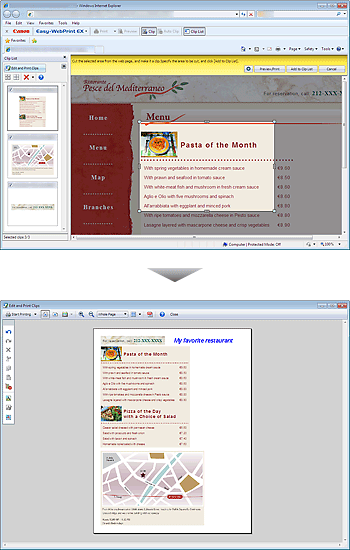
When Easy-WebPrint EX is installed, it adds a toolbar to your Internet Explorer screen. The toolbar is available whenever Internet Explorer is running.

The clip function, for example, allows you to clip desired parts of web pages and edit them to print.
 Note
Note-
For details on operating Easy-WebPrint EX, refer to the online help.
Select Help from Easy-WebPrint EX menu on the Easy-WebPrint EX toolbar to view the online help while running Internet Explorer.
