LCD and Operation Panel
You can use the machine to print photos on a memory card or USB flash drive, make copies, or scan originals without a computer.
You can also make good use of the various functions of the machine using the operation panel starting from the HOME screen on the LCD.
The HOME screen consists of four screens. You can use the  or
or  button (A) to switch between them. Each screen provides menus for making copies, printing photos, scanning originals, etc.
To select a menu on each screen, use the left, center, or right Function button (B).
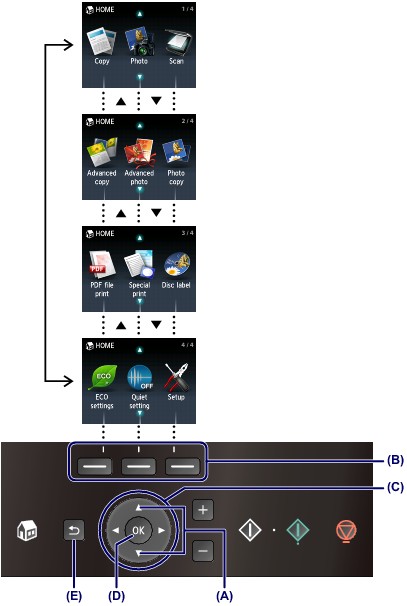
On the menu screen or settings screen, use the , ,  , or
, or  button (Scroll Wheel) (C) to select an item or option, then press the OK button (D) to proceed with the procedure.
To return to the previous screen, press the Back button (E).
Using the Function Buttons
When you select a menu on the HOME screen, function menus (F) will appear where required at the bottom of the screen. Pressing a corresponding Function button (G), (H), or (I) displays its function, such as a settings screen.
The number of function menus and their contents vary depending on the screen. Check the function menus displayed at the bottom of the screen, then select the one desired.
Example: Photo selection screen in Select photo print
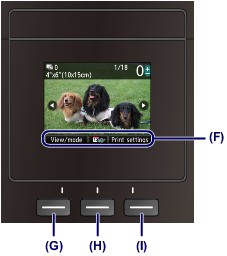
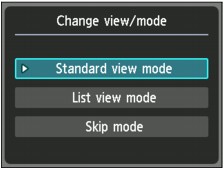
(G) Press the left Function button to select View/mode. The Change view/mode screen will appear.
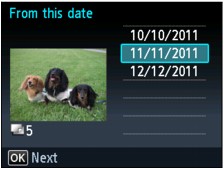
(H) Press the center Function button. A screen for specifying a date range of photos to be printed will appear.
(I) Press the right Function button to select Print settings. The Print settings screen will appear.
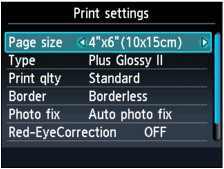
Using the , , , or Button (Scroll Wheel)
On the menu screen or settings screen, you can use the , , , or button (Scroll Wheel) to select an item or option.
Two types of control are available on the , , , or button (Scroll Wheel).
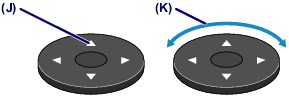
(J) Press the , , , or button to select items.
Or
(K) Turn around the Scroll Wheel with your finger to select items.
Be careful not to turn around the Scroll Wheel when you press the , , , or button.
When it is indicated that the Scroll Wheel can be used, it is also described in the operation procedure, i.e., "the , , , or button (Scroll Wheel)".
