Loading Plain Paper in the Cassette
You can load only A4, B5, A5, or Letter-sized plain paper in the cassette.
Load other sizes or types of paper in the rear tray.
 Note NoteAdvice for printing on plain paper
For details on the Canon genuine paper, see Media Types You Can Use.
For the page size and paper weight you can use for this machine, see Media Types You Can Use. |

Prepare paper.
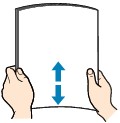
Align the edges of paper. If paper is curled, flatten it.
| Note
For details on how to flatten curled paper, see "Load the paper after correcting its curl." in Paper Is Smudged/Printed Surface Is Scratched. |
Load paper.
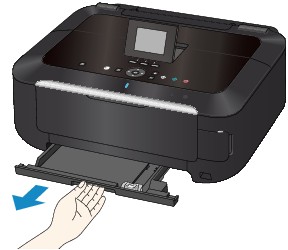
(1) Pull out the cassette from the machine.
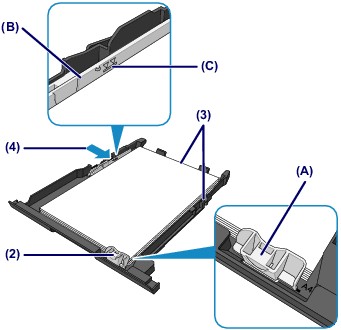
(2) Slide the paper guide (A) to align with the mark of page size.
The paper guide (A) will stop when it aligns with the corresponding page size mark.
(3) Load the paper stack WITH THE PRINT SIDE FACING DOWN and THE LEADING EDGE TO THE FAR SIDE, and align it against the right side of the cassette.
| Note
|
(4) Slide the paper guide (B) on the left to align completely with the side of the paper stack.
| Note
|
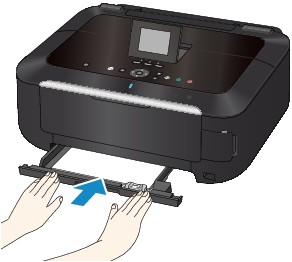
(5) Insert the cassette into the machine.
Push the cassette all the way into the machine.
Open the paper output tray gently, and open the output tray extension.
| Note After loading paper
|
