Loading Photo Paper in the Rear Tray
 Important Important
 If you cut plain paper into small size such as 4" x 6" (10 x 15 cm), 4" x 8" (101.6 x 203.2 mm), 5" x 7" (13 x 18 cm), or 2.16" x 3.58" (55.0 x 91.0 mm) (Card size) to perform trial print, it can cause paper jams. If you cut plain paper into small size such as 4" x 6" (10 x 15 cm), 4" x 8" (101.6 x 203.2 mm), 5" x 7" (13 x 18 cm), or 2.16" x 3.58" (55.0 x 91.0 mm) (Card size) to perform trial print, it can cause paper jams.
|
Prepare paper.
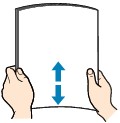
Align the edges of paper. If paper is curled, flatten it.
 Note Note
Align the edges of paper neatly before loading. Loading paper without aligning the edges may cause paper jams.
If paper is curled, hold the curled corners and gently bend them in the opposite direction until the paper becomes completely flat.
For details on how to flatten curled paper, see "Load the paper after correcting its curl." in Paper Is Smudged/Printed Surface Is Scratched.
When using Photo Paper Plus Semi-gloss SG-201, even if the sheet is curled, load one sheet at a time as it is. If you roll up this paper to flatten, this may cause cracks on the surface of the paper and reduce the print quality.
|
Load paper.
(1) Open the paper support, raise it, then tip it back.
(2) Open the paper output tray gently, and open the output tray extension.
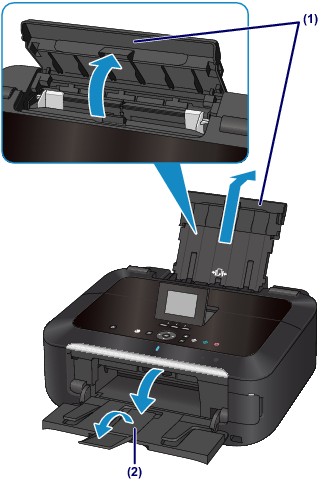
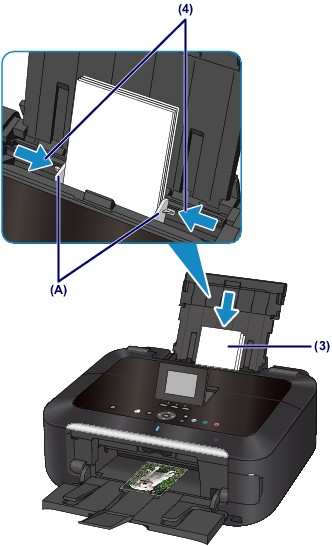
(3) Slide the paper guides (A) to open them, and load the paper in the center of the rear tray WITH THE PRINT SIDE FACING YOU.
(4) Slide the paper guides (A) to align them with both sides of the paper stack.
Do not slide the paper guides too hard against the paper. The paper may not be fed properly.
Important
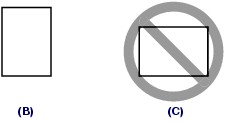
Always load paper in the portrait orientation (B). Loading paper in the landscape orientation (C) can cause paper jams.
|
Note
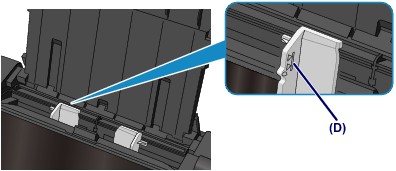
Do not load sheets of paper higher than the load limit mark (D).
|
Note
After loading paper
Select the size and type of the loaded paper on the print settings screen of the operation panel or printer driver.
|
