Register frequently read documents as My Manual documents so that you can refer to those documents easily at any time.
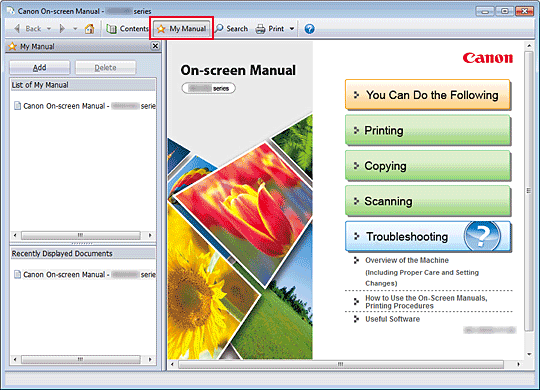
-
Display the document
Display the document to be added to My Manual.
-
Click

The My Manual pane is displayed to the left of the on-screen manual.
 Note
Note-
Click
to close or display the My Manual pane.
-
-
Register the document to My Manual
Click Add.
The title of the currently displayed document is added to List of My Manual.
Note-
You can also add documents to My Manual by the following methods. If you add a document to My Manual, a
 mark is displayed in the document icons in the contents pane.
-
From the Recently Displayed Documents list, double-click the document title that you want to add to My Manual or select the document title and press the Enter key to display the title, and then click Add
-
Right-click the document title displayed in the contents pane or right-click the explanation window, and then select Add to My Manual from the right-click menu
-
In the contents pane, select the document title that you want to add to My Manual, and then click Add to My Manual at the bottom right of the contents pane
-
-
-
Display My Manual
When you double-click a document title displayed in List of My Manual or select a document title and press the Enter key, that document is displayed in the explanation window.
Note-
To delete a document from List of My Manual, select that document title from the list, and then click Delete (or press Delete key).
-
