You can enter a keyword to search for a target document.
All documents in the currently displayed on-screen manual are searched.
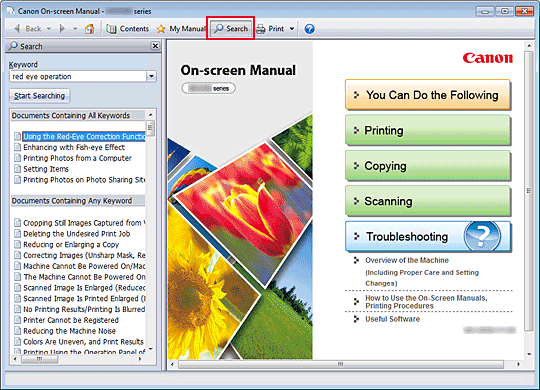
-
Click

The search pane is displayed to the left of the on-screen manual.
 Note
Note-
Click
to close or display the search pane.
-
-
Enter a keyword
In Keyword, enter a keyword for the item to be checked.
When you want to enter multiple keywords, insert a space between the keywords.
Note-
You can enter up to 10 search keywords or up to 255 characters.
-
Uppercase and lowercase are not distinguished.
-
The program can also search for keywords that contain spaces.
-
A convenient way of quickly finding a document to be read is to enter keywords as described below.
-
To learn how to operate a function you are using:
Enter names such as the menu name displayed on the computer (for example, simulate illustration). -
To find an explanation of the operation for a specific purpose:
Enter function + item to be printed (for example, print calendar).
-
-
-
Click Start Searching
The search is started, and the titles of documents containing the keyword are displayed in the search results list.
When you execute a search by entering multiple keywords, the search results are displayed as shown below.
- Documents Containing Perfect Match
-
Documents containing the entire search character string (including spaces) exactly as entered (perfect match)
- Documents Containing All Keywords
-
Documents containing all keywords that were entered
- Documents Containing Any Keyword
-
Documents containing at least one of the keywords that were entered
-
Display the document that you want to read
From the search results list, double-click (or select and press Enter key) the title of the document you want to read.
When the documents of that title are displayed, the keywords found on those documents are highlighted.
Note-
The search history remains when you modify the keyword entry and perform search multiple times. To delete the search history, click
 located at the right of Keyword, and select Clear History, which is displayed.
