The simple setup procedure for carrying out appropriate printing on this machine, is as follows:
-
Check that the machine is turned on
-
Load paper on the machine
-
Open the printer driver setup window
-
Select a frequently used profile
In Commonly Used Settings on the Quick Setup tab, select a printing profile suited for the purpose.
When you select a printing profile, the Additional Features, Media Type, and Printer Paper Size settings are automatically switched to the values that were preset.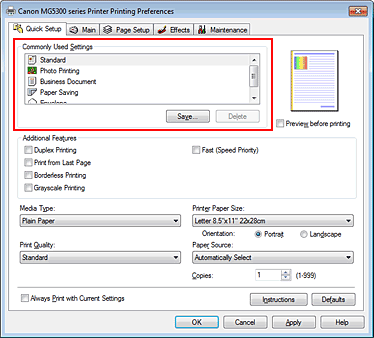
-
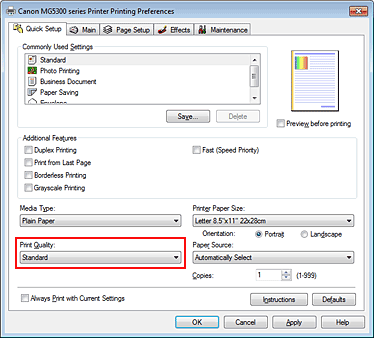
Select the print quality
For Print Quality, select High, Standard, or Fast according to your purpose.
-
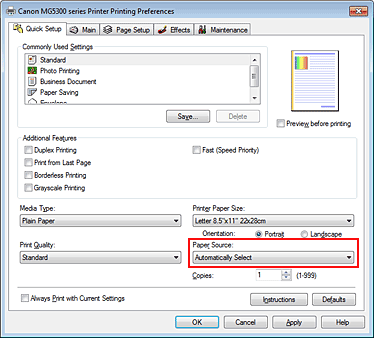
Select the paper source
Select Automatically Select, Rear Tray, Cassette, Continuous Autofeed, or Paper Allocation that matches your purpose for Paper Source.
 Important
-
The paper source settings that can be selected may differ depending on the paper type and size.
-
-
Complete the setup
Click OK.
When you execute print, the document is printed with settings that matches your purpose.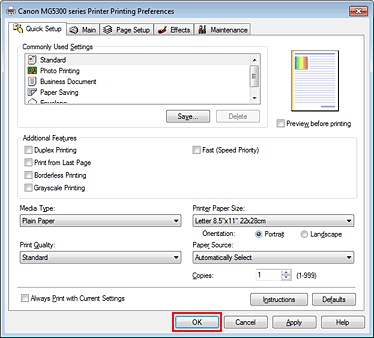
Important
-
When you select the Always Print with Current Settings check box, all settings specified on the Quick Setup, Main, Page Setup, and Effects tabs are saved, and you can print with the same settings from the next time as well. (Effects tab cannot be used when the XPS printer driver is used.)
-
Click Save... to register the specified settings.
 Registering a Frequently Used Printing Profile.

