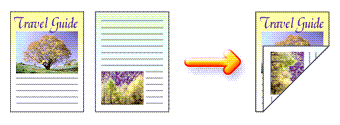
The procedure for printing data on both sides of a sheet of paper is as follows:
You can also set duplex printing in Additional Features on the Quick Setup tab.
Performing Automatic Duplex Printing
You can perform the duplex printing without having to turn over the paper.
-
Open the printer driver setup window
-
Set automatic duplex printing
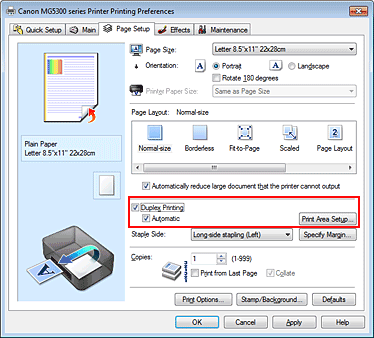
Check the Duplex Printing check box on the Page Setup tab and confirm that Automatic is checked.
-
Select the layout
Select Normal-size, Fit-to-Page, Scaled, or Page Layout from the Page Layout list.
-
Set the print area
When you perform duplex printing, the print area of the document becomes slightly narrower than usual and the document may not fit on one page.
Click Print Area Setup..., select one of the following process methods, and then click OK.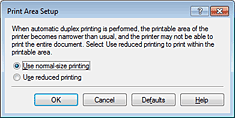
- Use normal-size printing
-
Print without reducing the page.
- Use reduced printing
-
Reduce the page slightly during printing.
-
Specify the side to be stapled
The machine analyzes the Orientation and Page Layout settings, and automatically selects the best Staple Side. When you want to change the setting, select another value from the list.
-
Set the margin width
If necessary, click Specify Margin... and set the margin width, and then click OK.
-
Complete the setup
Click OK on the Page Setup tab.
When you execute print, duplex printing will be started.
Performing Duplex Printing Manually
You can perform the duplex printing manually.
-
Open the printer driver setup window
-
Set duplex printing
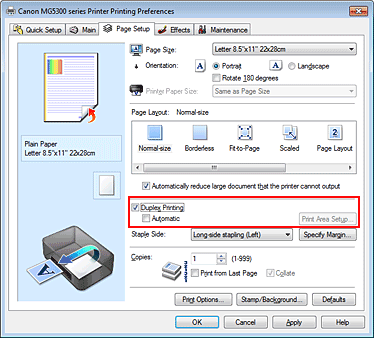
Check the Duplex Printing check box and uncheck the Automatic check box on the Page Setup tab.
-
Select the layout
Select Normal-size (or Fit-to-Page, Scaled or Page Layout) from the Page Layout list.
-
Specify the side to be stapled
The machine analyzes the Orientation and Page Layout settings, and automatically selects the best Staple Side. When you want to change the setting, select another value from the list.
-
Set the margin width
If necessary, click Specify Margin... and set the margin width, and then click OK.
-
Complete the setup
Click OK on the Page Setup tab.
When you execute print, the document is first printed on one side of a sheet of paper. After one side is printed, reload the paper correctly according to the message.
Then click OK to print the opposite side.
 Important
-
When a media type other than Plain Paper is selected from the Media Type list on the Main tab, Duplex Printing appears grayed out and is unavailable.
-
When Borderless, Tiling/Poster or Booklet is selected from the Page Layout list, Duplex Printing and Staple Side appear grayed out and are unavailable.
-
Duplex Printing can be performed only when one of the following paper sizes is selected from Page Size on the Page Setup tab.
-
Letter 8.5"x11" 22x28cm, A5, A4, B5
-
-
After printing the front page, there is an ink drying wait time before starting to print the back page (Operation stops temporarily). Do not touch the paper during the time. You can change the ink drying wait time at Custom Settings on the Maintenance tab.
 Note
Note
-
When performing the automatic duplex printing, do not use any plain paper smaller than A5.
-
If the back side of the paper becomes smudged during duplex printing, perform Bottom Plate Cleaning in the Maintenance tab.

