
Enter a password to open or edit/print password-protected PDF files.
Password entry method varies by operation. The following procedures are examples only.
 Important
You can open, edit, or print only PDF files whose passwords were set with MP Navigator EX. You cannot edit PDF files edited in other applications or whose passwords were set with other applications. Only MP Navigator EX version 1.1 and 2.0 or later supports opening, editing, and printing password-protected PDF files.
Passwords are case sensitive.
You can create or edit up to 99 pages at one time using MP Navigator EX.
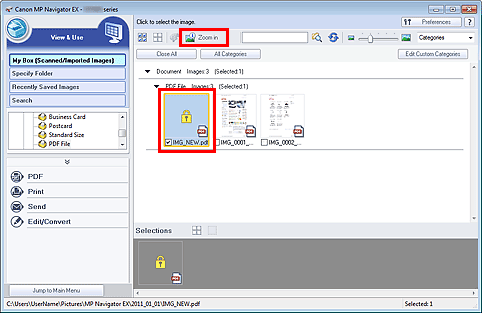
In the View & Use window, select the PDF file you want to open and click  Zoom in.
Alternatively, double-click the PDF file.
 Note
NoteOnly the Document Open Password will be required. The Permissions Password will not be required.
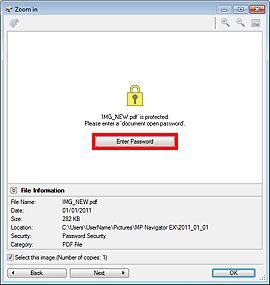
If the Zoom in window with a lock icon opens, click Enter Password.
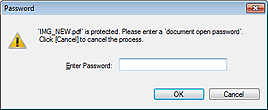
The Password dialog box opens. Enter the password and click OK.
The PDF file opens in the Zoom in window.
NoteTo reopen the file after closing the Zoom in window, re-enter the password.
In the View & Use window, select PDF files and click PDF or Print.
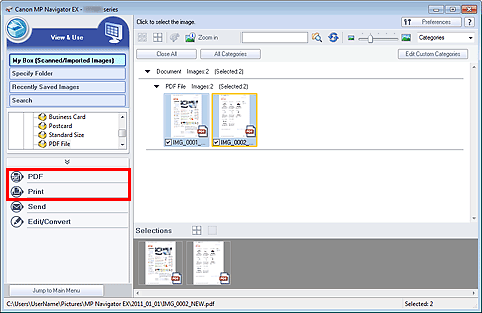
To create a PDF file or edit the file, select Create/Edit PDF file on the list. To print the file, click Print Document.
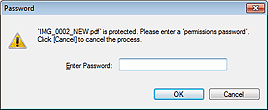
In the Password dialog box, you will be prompted to enter a password.
 Note
NoteIf the Document Open Password is set as well, the Document Open Password will be required, then the Permissions Password will be required.
Enter the password and click OK.
The corresponding dialog box opens.
ImportantIf a password-protected PDF file is edited, the passwords will be deleted. Reset the passwords.


