
Click Print in the View & Use window, then click Print Document on the list to open the Print Document dialog box.
In the Print Document dialog box, you can make advanced settings for printing multiple scanned images at one time.
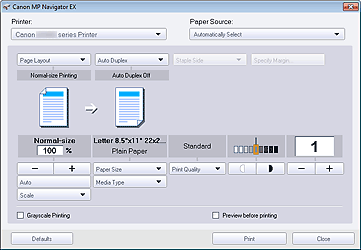
Printer
Select the printer to use.
Paper Source
Select paper source.
Page Layout
Select a print type.
Normal-size Printing
Print one image per sheet.
Scaled Printing
Print images at the selected scale (enlarged or reduced).
Fit-to-Page Printing
Print an image at the paper size (enlarged or reduced).
Borderless Printing
Print the image on an entire sheet of paper without borders.
Page Layout Printing (2 on 1)
Layout and print two images on a sheet of paper.
Page Layout Printing (4 on 1)
Layout and print four images on a sheet of paper.
Auto Duplex
Print on both sides of a sheet of paper automatically.
 Note
NoteAuto Duplex is displayed when Page Layout is Normal-size Printing or Scaled Printing, and available when Media Type is Plain Paper.
Staple Side
Select a stapling side from the list.
NoteStaple Side is available when Auto Duplex is On.
Specify Margin...
Specify the width of the margin (0 inches to 1.2 inches (0 mm to 30 mm)).
NoteSpecify Margin... is available when Auto Duplex is On.
A page may not fit in one page due to the Specify Margin... setting. In that case, the document will be reduced for printing.
Enlarge/Reduce
Enlarge or reduce images to print.
 (Enlarge/Reduce)
Print a reduced or enlarged image by specifying a scale in increments of 1%.
Auto / 100% Normal-size
You can set to adjust the scale automatically according to the selected paper size or set to normal-size (100%).
Auto
Scale is adjusted automatically according to the detected paper width and the selected paper size. Image may be printed rotated 90 degrees depending on its size.
100% Normal-size
Print at normal-size (100%).
Scale
Select a scale from the list.
 Important
At 100% Normal-size, some images may be printed small or with some portions cropped. In that case, select Auto to resize the print in proportion to the paper size.
Paper Size
Select the size of paper for printing. Match the size to the size of the paper set in the machine.
NoteSelectable paper sizes depend on the selected printer.
Media Type
Select the type of paper for printing. Print quality may be fixed depending on the paper type.
NoteSelectable paper types depend on the selected printer.
Print Quality
Select the print quality.
Density
Click  (Density adjustment) to select the print density.
Copies
Click  (Copy setting) to select the number of copies to be printed.
ImportantYou can print up to 99 pages at one time.
Grayscale Printing
Print the document in black and white.
Preview before printing
Preview the print result.
Defaults
Restore the default settings.
Start printing with the specified settings.
Close
Close the Print Document dialog box.
