
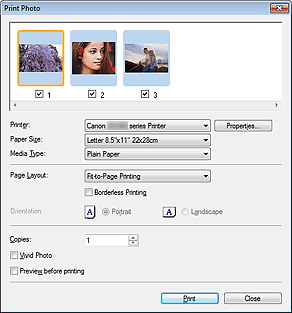
Click Print in the View & Use window, then click Print Photo on the list to open the Print Photo dialog box.
 Important
The Print Photo dialog box will not open if Easy-PhotoPrint EX is installed. Easy-PhotoPrint EX starts instead.
PDF files cannot be printed.
 Note
NoteDouble-click an image to display it in a different window.
Printer
Select the printer to use.
Properties...
Displays the selected printer's advanced setting screen.
Paper Size
Select the size of paper for printing. Match the size to the size of the paper set in the machine.
Media Type
Select the type of paper for printing. Print quality may be fixed depending on the paper type.
Page Layout
Select a print type.
Normal-size Printing
Print one image per sheet.
Fit-to-Page Printing
Print an image at the paper size (enlarged or reduced).
Borderless Printing
Select this checkbox to print the image on an entire sheet of paper without borders.
ImportantPage Layout setting will be disabled when you select Borderless Printing.
This setting is only available with printers that support borderless printing.
Orientation
Specify the print orientation.
ImportantThis setting is available only when Page Layout is Normal-size Printing. For others, the image is automatically rotated according to the aspect ratio of the paper.
Copies
Specify the number of copies to print.
ImportantYou can print up to 99 pages at one time.
Vivid Photo
Print the image in vivid colors.
Preview before printing
Preview the print result.
Starts printing.
NoteOnly the images in the Thumbnail window with the checkbox selected are printed.
Close
Closes the dialog box without printing the photo.
