
You can search for images on photo sharing sites on the Internet and download the images you want to print.
 Important
Internet connection is required to use this function. Internet connection fees apply.
For the purpose of using this function, your product name, OS information, regional information and information that you have clicked  (Import photos from photo sharing sites) will be collected and sent to Canon.
This function may not be available in some regions.
It is unlawful to reproduce or edit the copyrighted work of another person without permission from the copyright holder, except for personal use, use within the home, or other use within the limited scope as defined by the copyright.
Additionally, reproducing or editing photographs of people may infringe on portrait rights.
You may be required permission of way to use the work from copyright holder when using the work of others except for personal use, use within the home, or other use within the limited scope as defined by the copyright. Please check the details carefully of the web page of work in the photo sharing site.
Please also check terms of service in the photo sharing site before using the work of others.
Canon is not responsible for the any copyright problems by using this function.
This product uses the Flickr API but is not endorsed or certified by Flickr.
 Note
NoteOperation(s) for Photo Print is (are) used as example(s) in the following descriptions.
Start Easy-PhotoPrint EX.
Click Photo Print from Menu.
The Select Images screen appears.
NoteWhen an item other than Photo Print is selected from Menu, follow these steps.
1. Select the paper size, layout, etc. in the Page Setup screen.
2. Click Select Images in the step button area on the left side of the screen.
In the Select Images screen, click (Import photos from photo sharing sites).
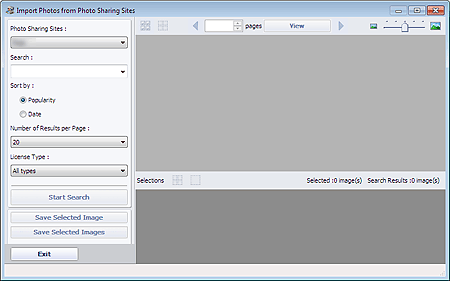
The Import Photos from Photo Sharing Sites window appears.
 Note
NoteYou can also display the Import Photos from Photo Sharing Sites window by clicking (Import photos from photo sharing sites) in the Add Image dialog box. To display the Add Image dialog box, select the page you want to add images to in the Edit screen, then click  (Add Image).
When you click (Import photos from photo sharing sites), a message about created works and personality rights appear.
To hide the message, select the Do not show this message again checkbox.
See "Import Photos from Photo Sharing Sites Window" for details on the Import Photos from Photo Sharing Sites window.
Enter the search text in Search.
Set Sort by, Number of Results per Page and License Type.
Click Start Search.
Search starts, then the images that match the search text appear in the Thumbnail window.
ImportantSome images, such as images in formats other than JPEG, do not appear.
NoteClick  (Back to the previous page) to display the previous page. Click
  (Go to the next page) to display the next page.
Alternatively, enter a page number in the page number entry box and click View to display the page.
The number of search results (images) may be small depending on the language of the search text. In that case, entering English search text may increase search results.
Select the image(s) you want to download.
The selected image(s) is (are) displayed in the Selections area.
NoteYou can select up to 300 images.
Click  (Cancel all image selections) to cancel all image selections in the Selections area.
Click  (Cancel image selection) to cancel the selection of images selected in the Selections area.
Click Save Selected Image or Save Selected Images.
When the Save Selected Image/Save Selected Images dialog box appears, specify the save location and file name, then click Save.
The selected images are saved.
NoteTo save only the images you like, select them in the Selections area and click Save Selected Image. To save all images, click Save Selected Images.
Only JPEG/Exif data format is available for saving downloaded images.
Click Exit.
Import Photos from Photo Sharing Sites window will be closed.
ImportantThe search results (images) will be deleted if you exit before saving them.
The Select Images screen returns; click the image you want to print.
The selected image itself will appear in the selected image area.
NoteFor items other than Photo Print, when you opened the Import Photos from Photo Sharing Sites window from the Add Image dialog box in the Edit screen, the Add Image dialog box returns. Select the image(s) you want to add and click OK.
Click Select Paper in the step button area on the left side of the screen.
The Select Paper screen appears. Select the printer and paper size to be used, etc.
NoteFor items other than Photo Print, click Edit in the step button area on the left side of the screen to change the layout, enter text, etc.
Click Layout/Print in the step button area on the left side of the screen.
The Layout/Print screen appears. Select a layout you want to use.
NoteFor items other than Photo Print, click Print Settings in the step button area on the left side of the screen to select the printer and paper to be used, etc.
Click Print in the step button area on the left side of the screen.

