


You can add images to pages.
Select the page you want to add photos to in the Edit screen, then click  (Add Image).
 Note
NoteThe screen(s) for Album printing is (are) used as example(s) in the following descriptions. The screen(s) may vary depending on what you create.
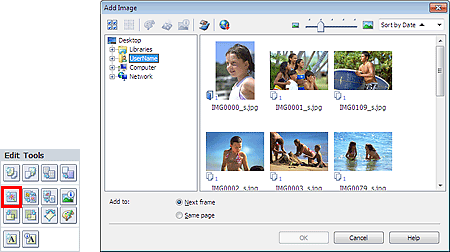
Select the folder containing the image you want to add from the Folder Tree area on the left of the Add Image dialog box, and select the image you want to add from the thumbnail window on the right.
NoteClick an image to select it (background turns blue) or deselect it (background turns white). You can also select multiple images.
You can also use still images captured from videos.
You can also use images downloaded from photo sharing sites on the Internet.
For PREMIUM Contents Print, View appears depending on the selected content. You can set to select images from PREMIUM Contents Images or Local Images.
For PREMIUM Contents Print, the Folder Tree area is not displayed when Local Images are not available for the selected content.
Select an option for Add to and click OK.
 Important
You can add up to 20 images at one time.
You cannot add two or more of the same image at one time. Add it one at a time.
Up to 99 of the same images can be added to all pages combined.
When the number of pages increases due to added images, you cannot add images beyond page 400.
For PREMIUM Contents Print, images cannot be added when there is no unused layout frame in the selected layout.
NoteIn the Add Image dialog box, you can select all images at one time or change the display size and order of the thumbnails. See Help for details.

