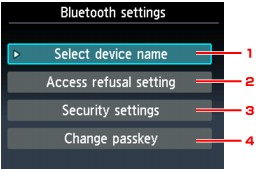
-
Select device name
Displays the device name of the printer to which the Bluetooth unit is attached.
-
Access refusal setting
Selecting ON will disable searching of this printer by a Bluetooth-compatible device.
-
Security settings
Select Enable and then specify the security mode to activate the passkey set on the Change passkey screen.
-
Change passkey
You can change the passkey. The passkey refers to an identification number to be determined. It is used to prevent unwanted access from other Bluetooth devices. The initial value is set to "0000".

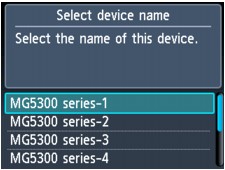
Select device name Screen
Allows you to set the device name of the printer on a Bluetooth device.
In the example used for this explanation, the model name is set to "MG5300 series".
When a model other than "MG5300 series" is used, whatever appears in place of "MG5300" becomes the model name use.
Ex:
When you select MG5300 series-2, the printer name displayed on the Bluetooth device is Canon MG5300 series-2.
The initial value is set to MG5300 series-1.
Access refusal setting Screen
When you search from a Bluetooth device, you can enable or disable the display of the printer name.
-
ON
Disables searching from a Bluetooth device.
-
OFF (Default setting)
Enables searching and printing from a Bluetooth device.
Security settings Screen
-
Enable
Selecting Enable allows you to choose either of the security modes below.
-
Mode 3(recommended)
This mode is activated on link level enforced security.
The passkey will be required when a Bluetooth device communicates with the printer. Normally select this mode.
-
Mode 2
This mode is activated on service level enforced security.
The passkey will be required when printing through the Bluetooth communication.
After setting the security mode, we recommend making a trial print through Bluetooth communication. If printing does not start, change the security mode and try again.
Setting a passkey will prevent unwanted access from other Bluetooth devices. You can change the passkey on the Change passkey screen.
-
-
Disable (Default setting)
When you register the printer, you are not required to input a passkey.
Change passkey Screen
When you select Enable on the Security settings screen, you are required to set a passkey to register the printer on other Bluetooth devices.
After you change the passkey, you may be asked to input the passkey on the Bluetooth devices you were able to print from before the passkey was changed. In this case, input the new passkey.