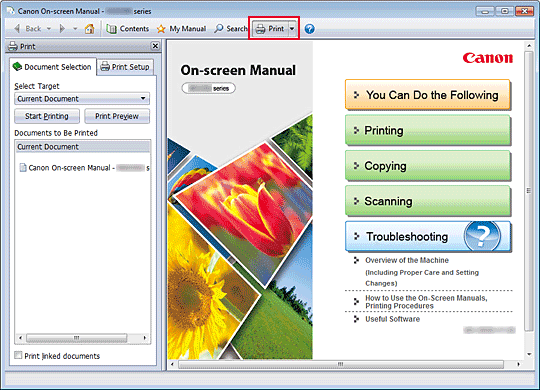
Click  to display the print pane to the left of the on-screen manual.
 Note
Note-
Click
to close or display the print pane. -
When you click
 and then click Page Setup, the Page Setup dialog box appears. You can then easily set up the paper to be used for printing.
 -
Click
, and then click Print Settings to display the Print dialog box. When the dialog box is displayed, select the printer to be used for printing. The Print Setup tab also allows you to select the printer to be used.
After selecting the printer to be used, click Properties... to specify the print settings. -
Click
, and then click Option Settings to display the Option Settings dialog box. You can then set up the printing operation.-
Print document title and page number
When this check box is checked, the manual name and the page number are printed in the header (top of the document). -
Print background color and images
When this check box is checked, the background color and the image are printed. Some images are printed regardless of whether this check box is checked or not. -
Check number of pages to be printed before printing
When this check box is checked, the Print Page Count Confirmation dialog box is displayed before printing starts. This dialog box allows you to check how many pages will be printed.
-
On the Document Selection tab, select the method for printing the document. The following four methods of printing are available:
Note-
You can select the type to be printed, and then easily specify print settings on the Print Setup tab.
Print Current Document
You can print the currently displayed document.
-
From Select Target, select Current Document
The title of the currently displayed document is displayed in the Documents to Be Printed list.
Note-
By selecting Print linked documents, you can also print documents that are linked to the current document. The linked documents are added to the Documents to Be Printed list.
-
Click Print Preview to display and check what the print results will look like before you actually print the document.
-
-
Click Print Setup tab
On the Page Setup tab, select the printer to be used and specify simple print settings, as necessary.
-
Click Start Printing
A message confirming the number of print pages is displayed.
-
Execute print
Confirm the number of pages to be printed, and then click Yes.
The documents that are currently displayed are printed.
Print Selected Documents
You can select and print the documents that you want to print.
-
From Select Target, select Selected Documents
The titles of all documents are displayed in the Documents to Be Printed list.
-
Select the documents to be printed
From the Documents to Be Printed list, select and check the title check boxes of the documents to be printed.
Note-
When you select the Automatically select documents in lower hierarchies. check box, the check boxes of all document titles found in the lower hierarchies are selected.
-
Click Select All to select the check boxes of all document titles.
Click Clear All to clear the check boxes of all document titles. -
Click Print Preview to display and check what the print results will look like before you actually print the document.
-
-
Click Print Setup tab
On the Page Setup tab, select the printer to be used and specify simple print settings, as necessary.
-
Click Start Printing
A message confirming the number of print pages is displayed.
-
Execute print
Confirm the number of pages to be printed, and then click Yes.
All documents with selected check boxes are printed.
Print My Manual
You can select and print documents registered in My Manual.
For details about My Manual, see "Registering Documents to My Manual."
-
From Select Target, select My Manual
The titles of the documents that have been registered to My Manual are displayed in the Documents to Be Printed list.
-
Select the documents to be printed
From the Documents to Be Printed list, select and check the title check boxes of the documents to be printed.
Note-
Click Select All to select the check boxes of all document titles.
Click Clear All to clear the check boxes of all document titles. -
Click Print Preview to display and check what the print results will look like before you actually print the document.
-
-
Click Print Setup tab
On the Page Setup tab, select the printer to be used and specify simple print settings, as necessary.
-
Click Start Printing
A message confirming the number of print pages is displayed.
-
Execute print
Confirm the number of pages to be printed, and then click Yes.
All documents with selected check boxes are printed.
Print All Documents
You can print all documents of the on-screen manual.
-
From Select Target, select All Documents
The titles of all documents are displayed in the Documents to Be Printed list, and the check boxes are automatically selected.
Note-
When you uncheck the check box of a document title, that document is not printed.
-
Click Select All to select the check boxes of all document titles.
Click Clear All to clear the check boxes of all document titles. -
Click Print Preview to display and check what the print results will look like before you actually print the document.
-
-
Click Print Setup tab
On the Page Setup tab, select the printer to be used and specify simple print settings, as necessary.
-
Click Start Printing
A message confirming the number of print pages is displayed.
-
Execute print
Confirm the number of pages to be printed, and then click Yes.
All documents are printed.
 Important
-
A large amount of paper is necessary to print all documents. Before printing, be sure to check the number of print pages displayed in the Print Page Count Confirmation dialog box.
-
The Print Preview dialog box allows you to scale the printing to the paper width or to set the zoom rate. However, if the print data extends outside the paper because of the new zoom rate, that portion of the document will not be printed on the paper.
-
