Allows you to set the printer with wireless LAN connection.
To display the Wireless LAN sheet, click the Wireless LAN tab on the Configuration screen.
 Note
Note-
Only when the wireless LAN setting of the printer is active, you can select the Wireless LAN tab.
-
If your machine is compatible with wireless LAN and wired LAN:
Select Wireless LAN active in Change wireless/wired on the operation panel to activate the wireless LAN setting.
-
If your machine is compatible with wireless LAN only:
Select Wireless LAN active in WLAN active/inactive on the operation panel to enable the wireless LAN setting.
-

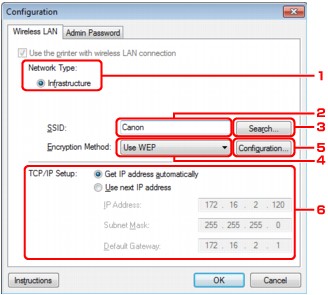
-
Network Type:
- Infrastructure
-
Connects the printer to the wireless LAN with an access point.
-
SSID:
The SSID of the wireless LAN is displayed.
As the initial settings, the unique value is displayed.
Note-
Enter the same SSID that the access point is configured to use. The SSID is case-sensitive.
-
-
Search
The Search screen is displayed to select an access point to connect to.
Note-
When IJ Network Tool runs over a LAN, the button is grayed out and cannot be selected. Connect the printer and the computer with a USB cable temporarily to change the settings.
-
-
Encryption Method:
Select the encryption method used over the wireless LAN.
- Do not use
-
Select to disable encryption.
-
Use WEP
-
Transmission is encrypted using a WEP key you specified.
-
If a WEP key has not been set, the WEP Details screen is displayed automatically. To change WEP settings set before, click Configuration... to display the screen.
-
Use WPA/Use WPA2
-
Transmission is encrypted using a WPA or WPA2 key you specified.
-
The security has been strengthened more than WEP.
-
If a WPA or WPA2 key has not been set, the Authentication Type Confirmation screen is displayed automatically. To change WPA or WPA2 settings set before, click Configuration... to display the WPA Details screen or WPA2 Details screen.
-
Configuration...
The detailed settings screen is displayed. The WEP, the WPA, or the WPA2 key selected in Encryption Method: can be confirmed and changed.
- For details on WEP setting:
- For details on WPA or WPA2 setting:
-
TCP/IP Setup:
Sets the IP address of the printer to be used over the LAN. Set a value appropriate for your network environment.
- Get IP address automatically
-
Select this option to use an IP address automatically assigned by a DHCP server. DHCP server functionality must be enabled on your wireless LAN router or access point.
- Use next IP address
-
If no DHCP server functionality is available in your setup where you use the printer or you want to use a particular IP address, select this option to use a fixed IP address.
