 Important
-
In Windows XP, you cannot scan using the WIA driver via a network connection.
-
Complete the following settings to enable scanning over a network.
1. From the Start menu, select Computer > Network.
2. Right-click XXX_MAC address (where "XXX" is the model name) in the displayed screen, then select Install.
Scanning with WIA Driver 2.0
The following is an example of scanning using "Windows Fax and Scan."
-
Place the document on the Platen.
-
Click Scan... from New on the File menu.
For network connection, double-click XXX_MAC address (where "XXX" is the model name) from the list.
The scan setting screen appears.
-
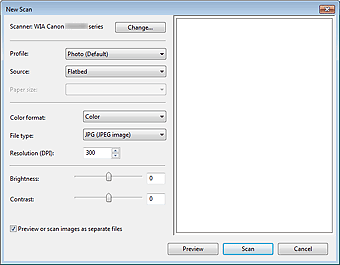
Specify the settings.
-
Scanner
The currently set product name is displayed. To change the scanner, click Change... and select the product you want to use.
-
Profile
Select Photo (Default) or Documents according to the document to be scanned. To save a new Profile, select Add profile.... You can specify the details in the Add New Profile dialog box.
-
Source
Select a scanner type.
-
Paper size
This setting is not available for this machine.
-
Color format
Select how to scan the document.
-
File type
Select a file format from JPEG, BMP, PNG, and TIFF.
-
Resolution (DPI)
Enter the resolution. Specify a value between 50 dpi and 600 dpi.
 Note
Note-
With network connection, the following scanning resolutions can be specified.
150 dpi / 300 dpi / 600 dpi
-
-
Brightness
Move the slider to adjust the brightness. Move it to the left to darken and right to brighten the image. You can also enter a value (-100 to 100).
-
Contrast
Move the slider to adjust the contrast. Moving it to the left will decrease the contrast of the image, thus softening the image. Moving it to the right will increase the contrast of the image, thus sharpening the image. You can also enter a value (-100 to 100).
-
Preview or scan images as separate files
Select this checkbox to preview or scan multiple images as separate files.
Note-
With network connection, you cannot specify Brightness and Contrast.
-
-
Click Preview to preview the image.
The preview image appears on the right.
-
Click Scan.
When scanning is completed, the scanned image appears in the application.

Scanning with WIA Driver 1.0
The following is an example of scanning using "Paint."
-
Place the document on the Platen.
-
Click From scanner or camera from
 . (Select the command to scan a document in the application.)
 -
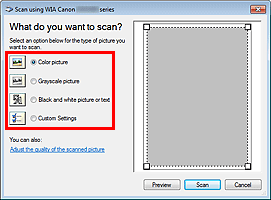
Select an image type according to the document to be scanned.
 Note
Note-
With network connection, an image type that can be selected may differ from that for USB connection.
-
To scan with the values previously set in Adjust the quality of the scanned picture, select Custom Settings.
-
-
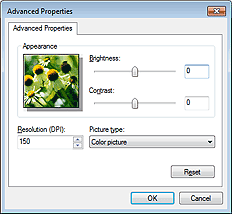
Click Adjust the quality of the scanned picture and set the preferences as required.
-
Brightness
Move the slider to adjust the brightness. Move it to the left to darken and right to brighten the image. You can also enter a value (-127 to 127).
-
Contrast
Move the slider to adjust the contrast. Moving it to the left will decrease the contrast of the image, thus softening the image. Moving it to the right will increase the contrast of the image, thus sharpening the image. You can also enter a value (-127 to 127).
-
Resolution (DPI)
Enter the resolution. Specify a value between 50 dpi and 600 dpi.
Note-
With network connection, the following scanning resolutions can be specified.
150 dpi / 300 dpi / 600 dpi
-
-
Picture type
Select the type of scan you want for your document.
-
Reset
Click to restore the original settings.
Note-
With network connection, you cannot specify Brightness and Contrast.
-
-
Click Preview to preview the image.
The preview image appears on the right. Drag
 to specify the scan area.
 -
Click Scan.
When scanning is completed, the scanned image appears in the application.
