
Select View & Use in the Navigation Mode screen to display the View & Use Images on your Computer tab.
You can open images saved on a computer and edit/print them or attach them to e-mail.
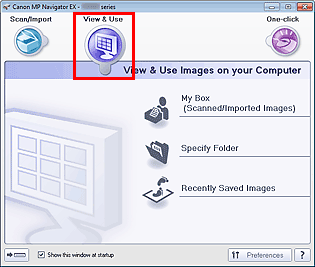
My Box (Scanned/Imported Images)
Opens the View & Use window with My Box (Scanned/Imported Images) selected.
You can open and use images saved in My Box.
"My Box" is a specific folder for saving images scanned with MP Navigator EX.
 Note
NoteBy default, the scanned images are saved in the following folders.
Windows 7: MP Navigator EX folder in My Pictures folder
Windows Vista: MP Navigator EX folder in Pictures folder
Windows XP: MP Navigator EX folder in My Pictures folder
Specify Folder
Opens the View & Use window with Specify Folder selected.
You can open and use images saved in specific folders.
Recently Saved Images
Opens the View & Use window with Recently Saved Images selected.
You can open and use "Scanned/Imported Images" and images that have been "Attached to E-mail" or "Sent to Application" recently.
 (Switch Mode)
Switches to One-click Mode screen. In the One-click Mode screen, you can complete from scanning to saving, etc. at one time by simply clicking the corresponding icon.
Show this window at startup
Select this checkbox to open the Main Menu at startup. If this checkbox is not selected, the last used screen appears.
Preferences
The Preferences dialog box opens. In the Preferences dialog box, you can make advanced settings to MP Navigator EX functions.
 (Guide)
Opens this guide.


