
You can open images saved on a computer and edit/print them or attach them to e-mail using MP Navigator EX.
Start MP Navigator EX and open the Navigation Mode screen.
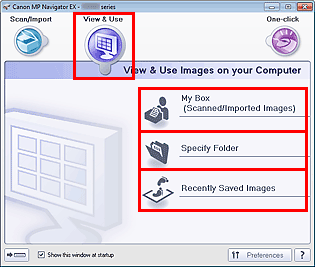
In the Navigation Mode screen, select View & Use and click My Box (Scanned/Imported Images), Specify Folder, or Recently Saved Images.
Click My Box (Scanned/Imported Images) to open images saved in My Box (Scanned/Imported Images), click Specify Folder to open images saved in a specific folder, or click Recently Saved Images to open recently saved images.
 Note
NoteIf the Show this window at startup checkbox is not selected, the last used screen appears. If the Scan/Import window is displayed, click  (View & Use) on the upper left of the screen. The View & Use window opens.
See "View & Use Images on your Computer Tab" for details on the View & Use Images on your Computer tab.
Click the folder containing the images you want to open.
Images saved in the folder appear in the Thumbnail window.
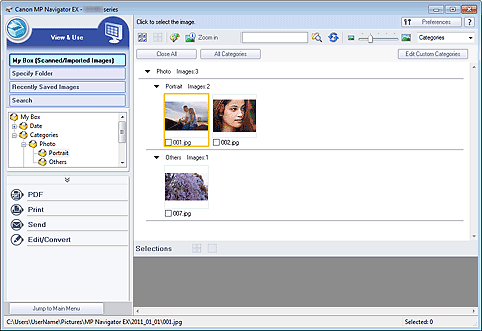
Select the images you want to use, then select what you want to do with them.
See the corresponding sections below for details on using images.
 Correcting/Enhancing Images Automatically
