
Send scanned images via e-mail.
 Important
MP Navigator EX is compatible with the following e-mail software programs:
- Microsoft Outlook
- Windows Live Mail
- Windows Mail (Windows Vista)
- Outlook Express (Windows XP)
(If an e-mail software program does not operate properly, check that the program's MAPI is enabled. To enable MAPI, refer to the manual of the e-mail software program.)
 Note
NoteIf an e-mail software program is not selected, manually attach the scanned and saved image to e-mail.
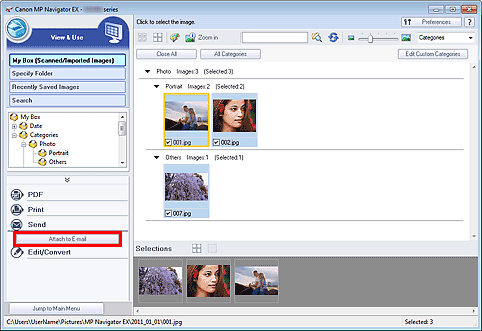
Scan documents into MP Navigator EX and save them, then open the View & Use window from the Navigation Mode screen and select images.
NoteOnly PDF and JPEG files can be attached to e-mail.
See "Let's Try Scanning" to scan images into MP Navigator EX.
You can also select images saved on a memory card or computer.
Click Send, then click Attach to E-mail on the list.
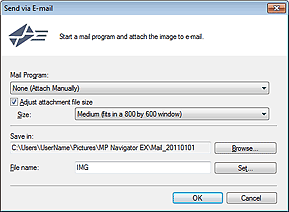
Set the e-mail software program and file save options as required.
Specify the e-mail software program, destination folder and file name.
 Note
NoteYou can select a compression type when sending JPEG images via e-mail. Click Set... to open a dialog box and select a compression type from High(Low Compression), Standard, or Low(High Compression).
Click OK.
Files are saved according to the settings, and the e-mail software program starts.
Specify the recipient, enter the subject and message, then send e-mail.
For details, refer to the manual of the e-mail software program.

