
You can import images (including PDF files created via scanning using the operation panel of the machine) saved on a memory card, and save them to a computer or print them using MP Navigator EX. You can also edit them or attach them to e-mail.
When saving PDF files, you can select whether to enable keyword search, and also specify the compression type and other advanced settings.
 Important
Do not remove or insert memory cards while they are being accessed or the access lamp of the machine is flashing.
The machine can only detect one memory card at a time. Do not simultaneously insert multiple memory cards.
When switching to another memory card of the same type or inserting another memory card in a different card slot, make sure that the access lamp of the machine is not flashing, then remove the memory card. Then, insert another memory card.
The card slot of this machine (memory card) may become inaccessible. In that case, restart the machine or turn it off and reconnect the USB cable.
With network connection, check that the card slot is mapped as a network drive. See "Using the Card Slot over a Network" for details.
On a network machine, memory cards will be inaccessible when you change the printer name using its operation panel.
Insert a memory card containing images/PDF files into the card slot of this machine.
For details on how to insert a memory card into the machine, see "Inserting the Memory Card."
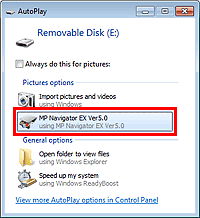
Select MP Navigator EX Ver5.0 in the program selection screen.
 Note
NoteIf you want to start MP Navigator EX every time a memory card is inserted into the machine, follow these steps.
Windows 7/Windows Vista:
Select the Always do this for pictures checkbox and click MP Navigator EX Ver5.0.
Windows XP:
Select MP Navigator EX Ver5.0, then select the Always do the selected action. checkbox and click OK.
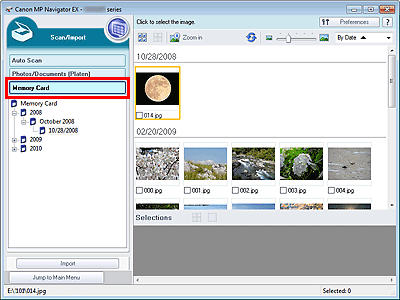
If a program selection screen does not appear after inserting a memory card into the card slot of this machine, start MP Navigator EX, then select Memory Card on the Scan/Import tab of the Navigation Mode screen.
The Memory Card screen of the Scan/Import window appears, and the images and PDF files saved on the memory card appear in the Thumbnail window.
 Important
If you cannot import images from memory cards via a network connection, see "Using the Card Slot over a Network."
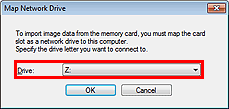
NoteWith network connection, the Map Network Drive dialog box may open when a memory card is inserted into the machine for the first time. Specify a drive letter to map.
See "Memory Card Screen (Scan/Import Window)" for details on the Memory Card screen.
Select the checkboxes of the images and PDF files you want to import, then click Import.
The Import dialog box opens. Specify the folder in which to save the imported files and change the PDF file settings as required.
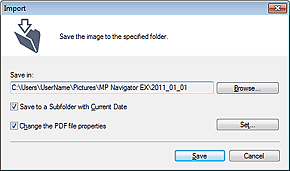
Save in
Displays the folder in which to save the imported images and PDF files. To change the folder, click Browse... to specify another one.
By default, the scanned images are saved in the following folders.
Windows 7: MP Navigator EX folder in My Pictures folder
Windows Vista: MP Navigator EX folder in Pictures folder
Windows XP: MP Navigator EX folder in My Pictures folder
Save to a Subfolder with Current Date
Select this checkbox to create a subfolder in the folder specified in Save in with the current date and save imported files in it. A subfolder with a name such as "2011_01_01" (Year_Month_Date) will be created.
If this checkbox is not selected, files are saved directly in the folder specified in Save in.
Change the PDF file properties
This option is displayed when PDF files are selected in the Memory Card screen.
Select this checkbox to change the PDF file settings. You can also change the settings of PDF files created via scanning using the operation panel of the machine. Click Set... to open a dialog box in which you can specify advanced settings. See "PDF Settings Dialog Box" for details.
Click Save.
The imported images and PDF files appear in the View & Use window.
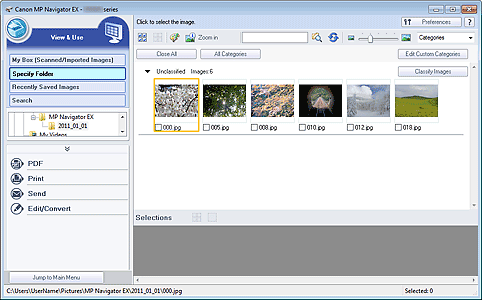
See the corresponding sections below for details on using the imported images and PDF files.
 Correcting/Enhancing Images Automatically
