
You can correct/enhance scanned images manually.
Scan documents into MP Navigator EX and save them, then open the View & Use window from the Navigation Mode screen and select the photos you want to correct/enhance.
 Note
NoteSee "Let's Try Scanning" to scan images into MP Navigator EX.
You can also select images saved on a memory card or computer.
Click Edit/Convert, then click Fix photo images on the list.
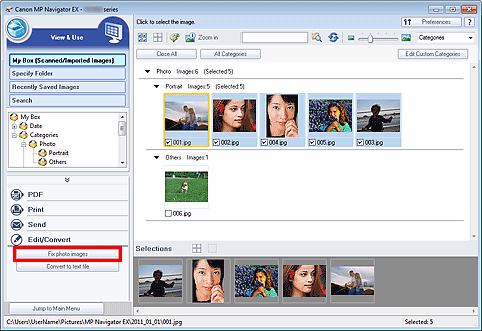
The Correct/Enhance Images window opens.
NoteThe Correct/Enhance Images window can also be opened by clicking  (Image Correction/Enhancement) on the Toolbar or in the Zoom in window. In that case, only the target image (outlined in orange) can be corrected/enhanced.
See "Correct/Enhance Images Window" for details on the Correct/Enhance Images window.
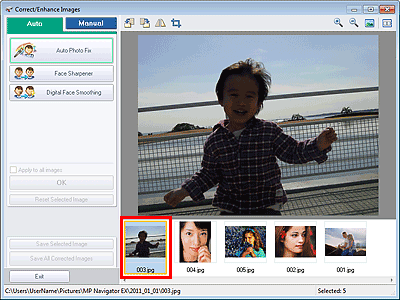
Select the image you want to correct/enhance from the thumbnail list.
The selected image appears in Preview.
 Note
NoteIf you selected only one image in the View & Use window, the thumbnail list does not appear and only the preview image appears.
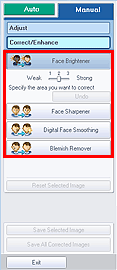
Select Manual, then click Correct/Enhance.
Click Face Brightener, Face Sharpener, Digital Face Smoothing or Blemish Remover.
 Note
NoteThe Face Brightener, Face Sharpener and Digital Face Smoothing effect levels can be changed using the slider that appears by clicking the corresponding buttons.
Move the cursor over the image. The shape of the cursor changes to  (Cross).
Drag to select the area you want to correct/enhance, then click OK that appears over the image.
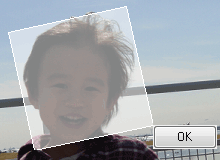
The portion in and around the selected area is corrected/enhanced and  (Correct/Enhance) mark appears on the upper left of the thumbnail and preview image.
NoteYou can also drag to rotate the rectangle.
Click Undo to undo the latest correction/enhancement.
Click Reset Selected Image to cancel all corrections, enhancements, and adjustments applied to the selected image.
Click Save Selected Image or Save All Corrected Images.
You can save corrected/enhanced images as new files.
NoteTo save only the images you like, select them and click Save Selected Image. To save all images, click Save All Corrected Images.
The file format of corrected/enhanced images is JPEG/Exif.
Click Exit.
 Important
The corrections/enhancements will be lost if you exit before saving corrected/enhanced images.

