
Create/edit PDF files using MP Navigator EX. After scanning documents and saving them, open the View & Use window to create PDF files and add/delete pages, rearrange the page order, etc.
 Important
You can create or edit up to 99 pages at one time using MP Navigator EX.
 Note
NoteSee "Let's Try Scanning" to scan images into MP Navigator EX.
You can also select images saved on a memory card or computer.
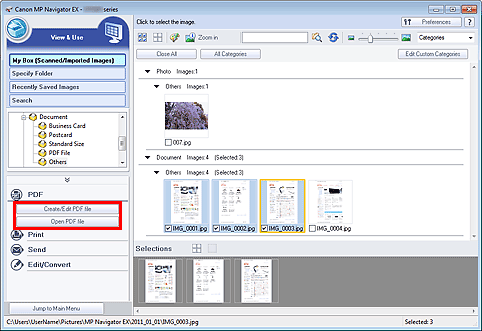
Select images and click PDF.
NoteYou can select PDF, JPEG, TIFF, and BMP files.
Click Create/Edit PDF file on the list.
ImportantFor PDF files, you can only edit those created with MP Navigator EX. You cannot edit PDF files created with other applications. PDF files edited in other applications cannot be edited as well.
NoteIf a password-protected PDF file is selected, you will be prompted to enter the password.
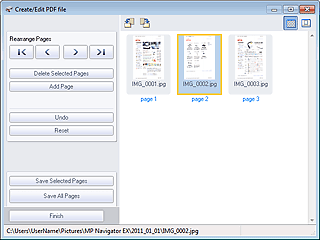
Add/delete pages as required.
To add an existing file, click Add Page and select the file. To delete a page, select it and click Delete Selected Pages.
 Note
NoteYou can add PDF, JPEG, TIFF, and BMP files.
When adding a password-protected PDF file, you will be prompted to enter the password.
Rearrange the page order as required.
Use the Rearrange Pages icons to rearrange the order. Alternatively, drag and drop the thumbnail to the target location.
NoteSee "Create/Edit PDF file Window" for details on the Create/Edit PDF file window.
Click Save Selected Pages or Save All Pages.
The Save as PDF file dialog box opens.
ImportantYou cannot save images scanned at 10501 pixels or more in the vertical and horizontal directions.
If a password-protected PDF file is edited, the passwords will be deleted. Reset the passwords in the Save as PDF file dialog box.
Specify the save settings in the Save as PDF file dialog box, then click Save.
Images are saved according to the settings.
You can open PDF files created with MP Navigator EX in an associated application and edit or print them.
Select PDF files and click PDF.
ImportantFor PDF files, you can only select those created with MP Navigator EX. You cannot select PDF files created with other applications. PDF files edited in other applications cannot be selected as well.
Click Open PDF file on the list.
The application associated with the file extension (.pdf) by the operating system starts.
ImportantPassword-protected PDF files cannot be opened in applications not supporting PDF security.
Files may not open if an application that can be associated with PDF files is not installed.
Use the application to edit/print the file.
For details, refer to the application's manual.
ImportantIn some applications, the commands (print, edit, etc.) restricted by Permissions Password may differ from those in MP Navigator EX.

