
Scan text in scanned magazines and newspapers and display it in Notepad (included with Windows).
 Important
PDF files cannot be converted to text.
Text conversion may not be possible depending on the selected image's data size.
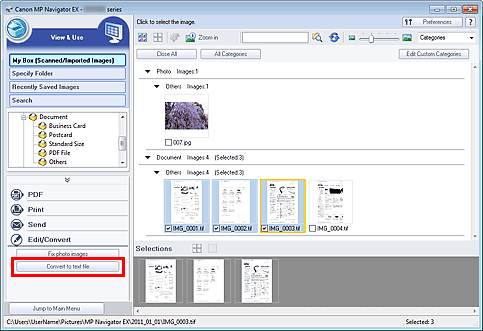
Scan documents into MP Navigator EX and save them, then open the View & Use window from the Navigation Mode screen and select the image you want to convert to text.
 Note
NoteSee "Let's Try Scanning" to scan images into MP Navigator EX.
In the Photos/Documents (Platen) screen of the Scan/Import window, select Text(OCR) for Document Type. Text conversion may not be performed correctly if you select an option other than Text(OCR). You cannot select Text(OCR) when the Compress scanned images when transferring checkbox is selected on the "General Tab" of the Preferences dialog box.
You can also select images saved on a memory card or computer.
Click Edit/Convert, then click Convert to text file on the list.
Notepad (included with Windows) starts and editable text appears.
NoteOnly text written in languages that can be selected on the General tab of the Preferences dialog box can be extracted to Notepad (included with Windows). Click Set... on the General tab and specify the language according to the language of the document to be scanned.
When scanning multiple documents, you can collect the extracted text into one file.
Text displayed in Notepad (included with Windows) is for guidance only. Text in the image of the following types of documents may not be detected correctly.
- Documents containing text with font size outside the range of 8 points to 40 points (at 300 dpi)
- Slanted documents
- Documents placed upside down or documents with text in the wrong orientation (rotated characters)
- Documents containing special fonts, effects, italics, or hand-written text
- Documents with narrow line spacing
- Documents with colors in the background of text
- Documents containing multiple languages
NoteYou can also scan a text document from the OCR dialog box in One-click Mode and extract the text in the image to display it in Notepad (included with Windows).

