
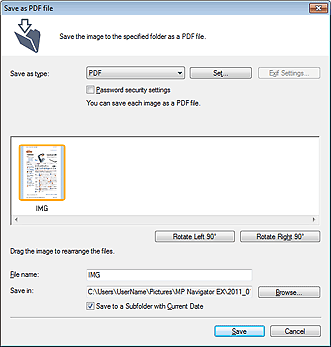
The Save as PDF file dialog box opens when you scan from the PDF dialog box of the One-click Mode screen after selecting Open the save dialog box after scanning the image.
In the Save as PDF file dialog box, you can make settings for saving images to a computer.
 Important
You cannot save images scanned at 10501 pixels or more in the vertical and horizontal directions.
Save as type
Select a PDF file type to save the scanned images.
Save each of the selected images as a separate PDF file.
PDF(Multiple Pages)
Save multiple images in one PDF file.
 Note
NotePDF(Multiple Pages) is displayed when multiple images are scanned.
PDF(Add Page)
Add the scanned images to an existing PDF file. The images are added to the end of the PDF file. You cannot rearrange the pages of the PDF file to which the images are added.
ImportantImages can only be added to PDF files created with MP Navigator EX. You cannot specify PDF files created with other applications. PDF files edited in other applications cannot be specified as well.
If a password-protected PDF file is edited, the passwords will be deleted. Reset the passwords.
Set...
Make advanced settings for creating PDF files. See "PDF Settings Dialog Box" for details.
Password security settings
Select this checkbox to open the Password Security -Settings dialog box in which you can set passwords for opening, editing, and printing created PDF files.
Add to
This is displayed when you select PDF(Add Page) for Save as type and specify the PDF file to which images are added. To change the file, click Browse... to specify another one.
ImportantImages can only be added to PDF files created with MP Navigator EX. You cannot specify PDF files created with other applications. PDF files edited in other applications cannot be specified as well.
Rotate Left 90° / Rotate Right 90°
Rotates scanned images 90 degrees counter-clockwise or clockwise.
Select the image you want to rotate and click Rotate Left 90° or Rotate Right 90°.
File name
Enter the file name of the image to be saved (up to 64 characters). When saving multiple files, 4 digits are appended to each file name.
Save in
Displays the folder in which to save the PDF files. To change the folder, click Browse... to specify another one.
By default, the scanned images are saved in the following folders.
Windows 7: MP Navigator EX folder in My Pictures folder
Windows Vista: MP Navigator EX folder in Pictures folder
Windows XP: MP Navigator EX folder in My Pictures folder
Save to a Subfolder with Current Date
Select this checkbox to create a subfolder in the folder specified in Save in with the current date and save scanned files in it. A subfolder with a name such as "2011_01_01" (Year_Month_Date) will be created.
If this checkbox is not selected, files are saved directly in the folder specified in Save in.

