
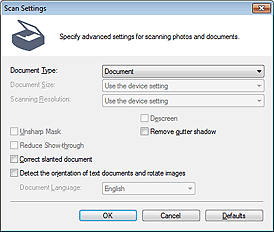
The Scan Settings dialog box opens when you click Specify... on the Scanner Button Settings tab of the Preferences dialog box.
In the Scan Settings dialog box, you can make advanced scan settings.
See "Setting Items on the Operation Panel of the machine" for details on the items to be set using the operation panel of the machine.
 Note
NoteThe displayed items vary by document type and how the screen was opened.
Document Type
The Document Type specified in the Scanner Button Settings tab of the Preferences dialog box is displayed. When Auto Scan is selected, the document type is automatically detected.
 Important
Place documents correctly according to the type of document to be scanned. Otherwise, documents may not be scanned correctly.
See "Placing Documents (When Scanning from a Computer)" for details on how to place documents.
Document Size
Set this item using the operation panel of the machine.
Scanning Resolution
Set this item using the operation panel of the machine.
Recommended Image Correction
Apply suitable corrections automatically based on the document type.
This function is available when Document Type is Auto Scan.
ImportantWhen this checkbox is selected, the files can be saved in JPEG/Exif or PDF format only.
Scanning may take longer than usual when this checkbox is selected.
This is not available when scanning in black and white using the operation panel of the machine by automatically detecting the document type.
The color tone may change from the source image due to corrections. In that case, deselect the checkbox and scan.
Descreen
Set this item using the operation panel of the machine.
Unsharp Mask
Set this item using the operation panel of the machine.
Remove gutter shadow
Corrects shadows that appear between pages when scanning open booklets.
ImportantWhen scanning, align a corner of the document with the corner at the arrow (alignment mark) of the Platen.
NoteUse ScanGear (scanner driver)'s Advanced Mode tab to correct gutter shadows when scanning non-standard size documents or when custom cropping frames (scan areas) are set.
See "Gutter Shadow Correction" for details.
Reduce Show-through
Set this item using the operation panel of the machine.
Correct slanted document
Detect the scanned text and correct the angle (within -0.1 to -10 degrees or +0.1 to +10 degrees) of the document.
ImportantThe inclination of the following types of documents may not be corrected, as the text cannot be detected correctly.
- Documents in which the text lines are inclined more than 10 degrees or the angles vary by line
- Documents containing both vertical and horizontal text
- Documents with extremely large or small fonts
- Documents with small amount of text
- Documents containing figures/images
- Hand-written documents
- Documents containing both vertical and horizontal lines (tables)
NoteScanning takes longer than usual when you enable Correct slanted document.
Detect the orientation of text documents and rotate images
Detect the orientation of the document from the scanned text and rotate the scanned image to the correct orientation. Select the language of the document to be scanned in Document Language.
ImportantThis function may not work properly depending on the document language. Only text documents written in languages that can be selected from Document Language are supported.
The orientation of the following types of documents may not be corrected, as the text cannot be detected correctly.
- Resolution is outside the range of 300 dpi to 600 dpi
- Font size is outside the range of 8 points to 48 points
- Documents containing special fonts, effects, italics, or hand-written text
- Documents with patterned backgrounds
NoteScanning takes longer than usual when you enable Detect the orientation of text documents and rotate images.
Document Language
Select the language of the document to be scanned.
Defaults
Restore the default settings.
