Check: Adjust the brightness and contrast of the image saved on a computer in the Correct/Enhance Images window.
Select the image you want to correct in the View & Use window of MP Navigator EX, then open the "Correct/Enhance Images Window" and adjust the image as follows:
-
Select Manual, then click Adjust in the Correct/Enhance Images window.
-
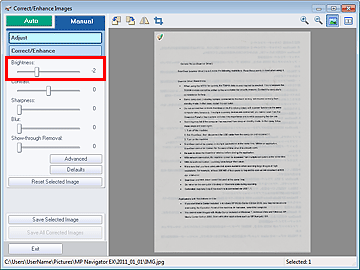
Move the Brightness slider to the left.
The entire image will be darkened by the adjustment.
-
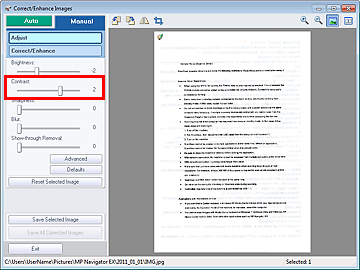
Move the Contrast slider to the right.
Adjust the contrast so that the brightness of the entire image becomes close to the original brightness.
-
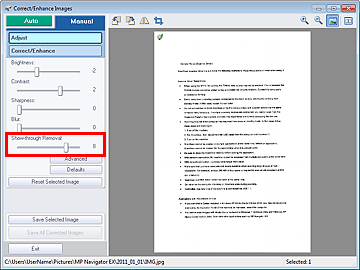
If show-through remains, use Show-through Removal to reduce it.
-
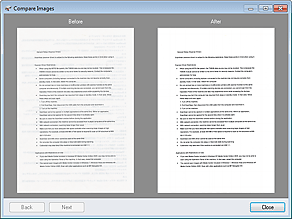
Click
 (Compare) to compare the images before and after the correction.
Adjust the correction level while checking the result in the Compare Images window.
-
Click Save Selected Image or Save All Corrected Images to save the corrected image.
 Important
-
In some images, colors such as the text color and background color (base color of the text document) may have been lost. In that case, the effects of image corrections may not be apparent.
-
Image correction/enhancement cannot be applied to PDF files or black and white binary files.
-
Corrected images can be saved in JPEG/Exif format only.
