You can set automatic duplex printing as a default. You can also enable the machine to turn off automatically when no operation is made or no printing data is sent to the machine for a specified length of time.
Follow the procedure below to perform setting.
-
Make sure that the machine is turned on.
-
Select
 ECO settings on the HOME screen.
 -
Use the

 button to change the setting item, and the
 button to change the setting, then use the OK button to confirm the selection.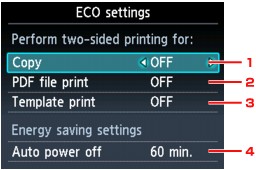
-
Copy
Sets duplex copying as a default.
-
PDF file print
Sets duplex printing of PDF files saved on a memory card/USB flash drive as a default.
-
Template print
Sets duplex printing of template forms on the machine as a default.
-
Auto power off
Specifies the length of time to turn the machine off automatically when no operation is made or no printing data is sent to the machine.
 Note
Note-
The Auto power off setting is invalid under the following conditions.
-
When using the machine via a network.
-
When Writable from USB PC or Writable from LAN PC is selected for Read/write attribute under Device user settings.
-
When a USB flash drive, a PictBridge compliant device or the optional Bluetooth Unit BU-30 is connected to the direct print port.
-
-
Note-
When duplex printing is selected, the
 icon is displayed on each menu of the HOME screen or on the setting items for duplex printing on each print setting screen.
-

