Load the original on the platen glass to copy.
This section describes the procedure to copy with Standard copy.
-
Make sure that the machine is turned on.
-
Load paper.
-
Select
 Copy on the HOME screen.
The Copy standby screen is displayed.
-
Load the original on the platen glass.
-
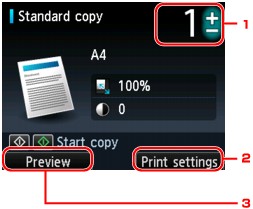
Specify the settings as necessary.
-
Number of copies
Specify by using the + or - button.
-
Print settings
By pressing the right Function button, the print settings screen is displayed.
On the print settings screen, you can change the settings of page size, media type, and print quality and so on.
-
Preview
By pressing the left Function button, you can preview an image of the printout on the preview screen.
 Note
Note-
To reset the settings of magnification, intensity, and number of copies, press the Stop button.
-
-
Press the Color button for color copying, or the Black button for black & white copying.
The machine starts copying.
Remove the original on the platen glass after copying is complete.
 Important
-
Do not open the document cover or remove the original from the platen glass until scanning is completed.
Note-
To cancel copying, press the Stop button.
-

Adding the Copying Job (Reserve copy)
You can add the copying job while printing (Reserve copy).
The screen below is displayed when you can add the copying job.
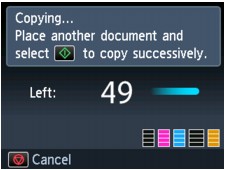
Load the original on the platen glass and press the same button (the Color button or the Black button) as the one which you previously pushed.
Important-
When you load the original on the platen glass, move the document cover gently.
Note-
When Print qlty (print quality) is set High, you cannot add the copying job.
-
When you add the copying job, the number of copies or the settings such as the page size or media type cannot be changed.
-
If you press the Stop button, the screen to select the method to cancel copying is displayed. Select Cancel all reservations, then press the OK button, you can cancel copying all scanned data. If you press the Stop button, select Cancel the last reservation, then press the OK button, you can cancel the last copying job.
-
If you set a document of too many pages to add the copying job, Cannot add more copy jobs. Please wait a while and redo the operation. may appear on the LCD. Press the OK button and wait a while, then try copying again.
-
If Failed to reserve the copy job. Start over from the beginning. appears on the LCD when scanning, press the OK button, then press the Stop button to cancel copying. After that, copy the documents that have not been finished copying.
