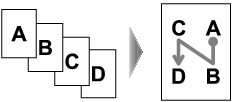
When you select 4-on-1 copy for Layout in Standard copy, you can copy four original pages onto a single sheet of paper by reducing each image. Four different layouts are available.
Press the right Function button on the Copy standby screen to display the print settings screen, then select 4-on-1 copy for Layout.
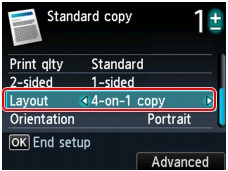
Press the right Function button to specify the advanced layout.
-
When Upper-left to right is selected
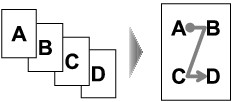
-
When Upper-right to left is selected
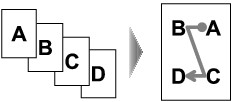
-
When Upper-left to bottom is selected
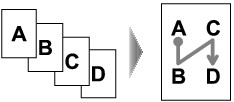
-
When Upper-right to bottom is selected
After selecting the layout, press the OK button, you can select whether you use the preview screen. If you select ON, the preview screen is displayed so that you can check the orientation.
 Note
Note-
If Device memory is full. Cannot continue process. appears on the LCD when scanning, set the print quality to Standard, then try copying again. If the problem is not resolved, set the print quality to Fast and try copying again.
-
This function can be used in combination with Two-sided copy.
If you use this function in combination, you can copy eight original pages on one sheet of paper. In this case, four original pages are copied on each side of paper.
If you use this function in combination, select the two-sided copy setting for 2-sided and the stapling side of print paper on the Print settings screen.
For details on two-sided copy function:

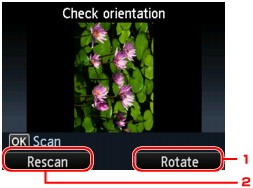
When checking the orientation:
When you are using the preview screen, the screen below is displayed so that you can check the orientation.
-
Rotate
If you press the right Function button, the original rotates by 180 degrees.
-
Rescan
If you press the left Function button, the original is rescanned.
Press the OK button to start scanning.
When scanning is finished:
Document setting screen appears on the LCD after scanning each sheet of original.
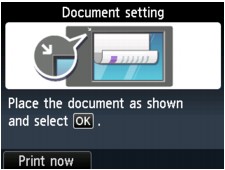
Remove the sheet of original from the platen glass after scanning and load the next sheet on the platen glass, then press the OK button.
After scanning the fourth sheet of original, the machine starts copying.
Note-
If you do not need more scanning, press the left Function button. The machine starts copying.
-
You can add the copying job while printing.
-
If you use this function in combination with Two-sided copy, the Document setting screen is displayed after scanning the fourth sheet of original is complete. Follow the on-screen instructions to scan the rest of originals.
