You can print the photograph saved on the memory card or USB flash drive easily.
This section describes the procedure to print the photograph in Photo.
-
Make sure that the machine is turned on.
-
Load photo paper in the rear tray.
-
Select
 Photo on the HOME screen.
 -
Insert the memory card into the card slot or insert the USB flash drive into the direct print port.
The photo selection screen is displayed.
 Important
-
You cannot use the memory card and USB flash drive at the same time.
 Note
Note-
When you insert the memory card/USB flash drive before you select Photo on the HOME screen, the photo selection screen is displayed.
If both photo files and PDF files are saved on the memory card/USB flash drive, the confirmation screen to select which file you print is displayed. Select Print photos in the displayed screen, then press the OK button.
-
If no printable photo data is saved on the memory card/USB flash drive, Data of supported types are not saved. is displayed on the LCD.
-
If more than 2,000 photo data are saved on the memory card/USB flash drive, the photo data is split by group per 2,000 photos in reverse chronological order (date last modified) automatically. Check the message displayed on the LCD, then press the OK button.
-
-
Use the

 button to select the photo to print.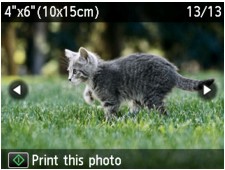
-
Press the Color button.
-
Select the page size and media type.
Use the

 button to select the setting item and the button to change the settings.
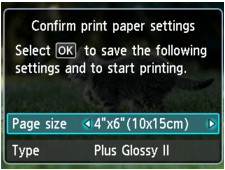 Note
Note-
The Confirm print paper settings screen is not displayed when you print the next photo because the print settings are memorized in the machine. To change the print settings, press the HOME button to return to the HOME screen or reinsert the memory card/USB flash drive.
-
-
Press the OK button.
The machine starts printing.
Note-
Press the Stop button to cancel printing.
-
While processing the print job, you can add the print job (Reserve photo print).
-
The
 reserved photo icon appears on the photo included in the print job.
 -
While processing the print job, the photo in other group is not selected.
-
While processing the print job, you cannot display the HOME screen, change the print menu, or print from the computer or other devices.
-
If you press the Stop button while processing the print job, select Cancel all reservations, then press the OK button, you can cancel printing all photos. If you press the Stop button, select Cancel the last reservation, then press the OK button, you can cancel the last printing job.
-
If there are many print jobs, Cannot reserve more print jobs. Please wait a while and redo the operation. may be displayed on the LCD. In this case, wait a while, then add the print job.
-
-

