
You can enhance an image to resemble a photo taken with a fish-eye lens.
Select photos in the Select Images screen, then click  (Special Image Filters).
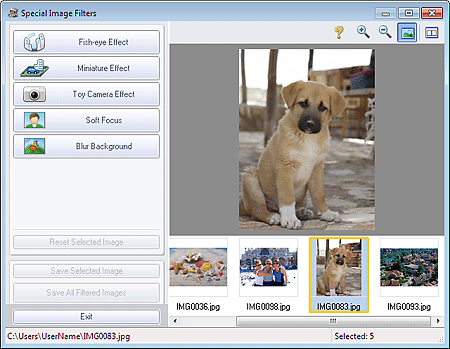
The Special Image Filters window appears.
 Note
NoteYou can also display the Special Image Filters window by clicking (Special Image Filters) in the Layout/Print or Edit screen. In that case, only the image displayed in Preview can be enhanced.
See Help for details on the Special Image Filters window.
Select the image you want to enhance from the thumbnail list in the Special Image Filters window.
The image appears in Preview.
NoteIf only one image is selected, the thumbnail list does not appear below Preview.
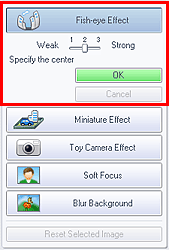
Click Fish-eye Effect.
 Note
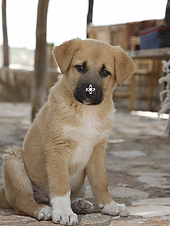
NoteThe  (Center) mark for setting the center position appears in Preview.
Effect levels can be changed using the slider below Fish-eye Effect.
Drag the (Center) mark to set the center position, then click OK.
The edges of the image are distorted, focusing on the specified area, and the  (Enhancement) mark appears on the upper left of the image.
NoteClick  (Compare) to display the images before and after enhancement side by side so that you can compare and check the result.
Click Cancel to undo the preceding enhancement operation.
Click Save Selected Image or Save All Filtered Images.
You can save enhanced images as new files.
NoteTo save only the image you like, click Save Selected Image. To save all images, click Save All Filtered Images.
Only JPEG/Exif data format is available for enhanced images.
Click Exit.
 Important
Enhancements will be lost if you exit before saving enhanced images.
NoteWhen the Special Image Filters window is displayed via Solution Menu EX, Proceed to Print appears instead of Exit. When you click it, the Special Image Filters window closes and the Select Images screen of Photo Print of Easy-PhotoPrint EX appears.
See the section below for how to print using Easy-PhotoPrint EX.

