

You can print labels on printable discs.
If you want to edit the details, return to Menu and select Disc Label/Case Cover. Refer to "Printing Disc Labels and Case Covers" for details.
 Note
NoteRefer to "Printing Photos" to complete operations in the Select Images screen first.
 Important
Do not set the disc tray until a message prompting you to load a printable disc appears. Loading a printable disc while the machine is operating may damage the machine.
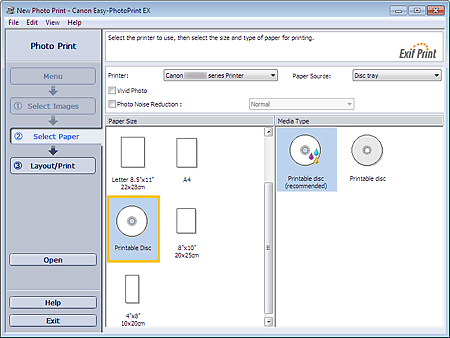
Set the Printer in the Select Paper screen.
Select Printable Disc for Paper Size.
Set the Media Type according to the printable disc to be used.
 Note
NoteWhen Printable Disc is selected for Paper Size, only Disc tray will be selectable for Paper Source.
Click Layout/Print.
The Layout/Print screen appears.
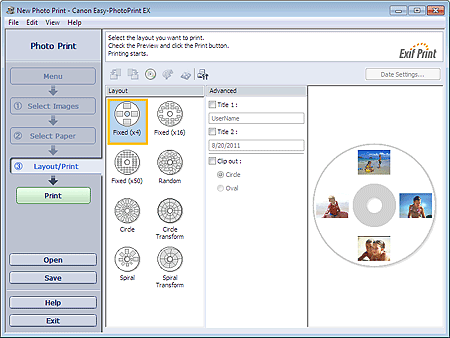
Select a layout you want to use.
Enter the title(s) and specify the details of the layout in Advanced.
NoteItems that can be set may vary depending on the selected layout.
Click Print.
Follow the message to load a printable disc, then start printing.
Printing starts from the top of the image displayed in Preview.
NoteYou can adjust the printing position on the printable disc in the Adjust dialog box. To display the Adjust dialog box, click  (Adjust Print Area/Print Position).
You can specify advanced Photo Print settings (number of copies, print quality, etc.) in the Preferences dialog box. To display the Preferences dialog box, click  (Settings) or select Preferences... from the File menu.
