Operation Panel
* The Wi-Fi and Alarm lamps are shown lit in the illustration below for explanatory purposes.
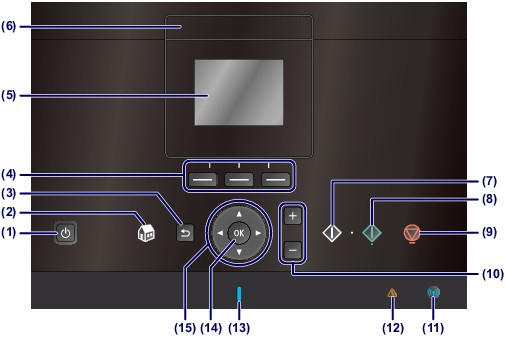
(1) ON button
Turns the power on or off. Before turning on the power, make sure that the document cover is closed.
 Important ImportantDisconnecting the power plug
|

 Note NoteAuto power off feature
For details on how to change the auto power off setting, see below. From the machine From the computer |

(2) HOME button
Used to display the HOME screen.
(3) Back button
Returns the LCD to the previous screen.
(4) Function buttons
Used to select menus on the HOME screen or select a function menu displayed at the bottom of the LCD.
(5) LCD (Liquid Crystal Display)
Displays messages, menu items, and the operational status. You can also preview photos on the LCD before printing.
| Note
|
(6) LCD Open button
Press to raise the LCD.
(7) Black button
Starts black & white copying, scanning, etc.
(8) Color button
Starts color printing, copying, or scanning.
(9) Stop button
Cancels operation when print, copy, or scan job is in progress.
(10) [+] [-] buttons
Specifies the number of copies to copy or print.
(11) Wi-Fi lamp
Lights or flashes blue to indicate the wireless LAN status.
Lights:
Wireless LAN active is selected.
Flashes:
Printing or scanning over wireless LAN. Also flashes while searching for wireless LAN access point during setup and when connecting to the access point.
(12) Alarm lamp
Lights or flashes orange when an error occurs, such as paper-out or ink-out.
(13) POWER lamp
Lights blue after flashing when the power is turned on.
(14) OK button
Finalizes the selection of a menu or setting item.
Resolves an error when printing is in progress or resumes the machine's normal operation after removing jammed paper.
(15)  ,
,  ,
,  , and
, and  buttons (Scroll Wheel)
Used to select a menu or setting item.
