 Important
-
Multiple users cannot scan at the same time.
 Note
Note-
Complete the network settings of the machine beforehand using the Setup CD-ROM.
Complete the following settings to enable scanning over a network.
Specifying the Machine
Use IJ Network Scanner Selector EX to specify the scanner you want to use. By specifying the scanner, you can scan over a network using your computer or the operation panel of the machine.
Important-
If the product you want to use is changed with IJ Network Scanner Selector EX, the product used for scanning with MP Navigator EX changes as well. The product for scanning using the operation panel also changes.
If the machine is not selected in MP Navigator EX, check that it is selected with IJ Network Scanner Selector EX.
-
To scan using the operation panel of the machine, specify the machine with IJ Network Scanner Selector EX.

-
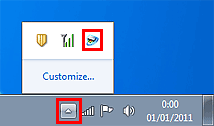
Check that IJ Network Scanner Selector EX is running.
If IJ Network Scanner Selector EX is running, its icon appears in the notification area of the taskbar.
 Note
Note-
If the icon is not displayed in the notification area of the taskbar, from the Start menu, select All Programs > Canon Utilities > IJ Network Scanner Selector EX > IJ Network Scanner Selector EX.
The icon appears in the notification area of the taskbar, and the Scan-from-PC Settings screen appears. In that case, skip ahead to Step 3.
-
-
In the notification area of the taskbar, right-click the IJ Network Scanner Selector EX icon and select Settings....
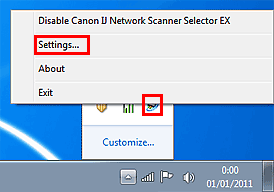
The Scan-from-PC Settings screen appears.
-
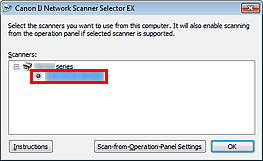
Select the machine from Scanners.
Normally, the MAC address of the machine is already selected after the network setup. In that case, you do not need to select it again.
 Important
-
If multiple scanners exist on the network, multiple model names are displayed. In that case, you can select one scanner per model.
-
-
Click OK.
Note-
The scanners selected in the Scan-from-PC Settings screen will be automatically selected in the Scan-from-Operation-Panel Settings screen as well.
Setting for Scanning with MP Navigator EX
To scan over a network using MP Navigator EX, specify the machine with IJ Network Scanner Selector EX, then follow the steps below and change the connection status between the computer and the machine.
-
Start MP Navigator EX.
-
Click Preferences.
-
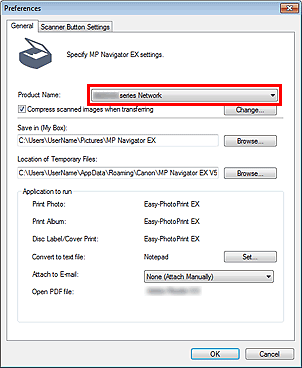
Click the General tab and select "XXX series Network" (where "XXX" is the model name) for Product Name.
 Note
Note-
When you click Change..., the Scan-from-PC Settings screen of IJ Network Scanner Selector EX appears.
If you have multiple scanners, you can select other scanners.
-
For USB connection, select "XXX series" (where "XXX" is the model name) for Product Name.
-
-
Click OK.
The Preferences dialog box closes. You can now scan via a network connection.
Go to the Main Menu to check whether network scanning is enabled.
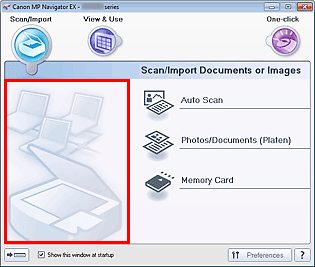
Setting for Scanning Using the Operation Panel of the Machine
You can make settings for scanning using the operation panel of the machine.
Important-
Set MP Navigator EX to use the machine via a network connection beforehand.
-
Check that IJ Network Scanner Selector EX is running.
If IJ Network Scanner Selector EX is running, its icon appears in the notification area of the taskbar.
Note-
If the icon is not displayed in the notification area of the taskbar, from the Start menu, select All Programs > Canon Utilities > IJ Network Scanner Selector EX > IJ Network Scanner Selector EX.
The icon appears in the notification area of the taskbar, and the Scan-from-PC Settings screen appears. In that case, skip ahead to Step 3.
-
-
In the notification area of the taskbar, right-click the IJ Network Scanner Selector EX icon and select Settings....
The Scan-from-PC Settings screen appears.
-
Click Scan-from-Operation-Panel Settings.
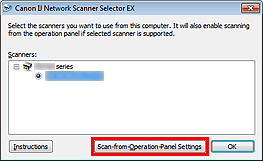
The Scan-from-Operation-Panel Settings screen appears.
-
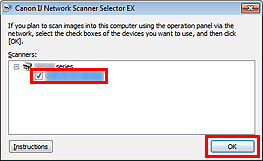
Select the machine from Scanners and click OK.
Select the MAC address of the machine.
 Note
Note-
When multiple scanners are connected via a network, you can select up to three scanners.
-
-
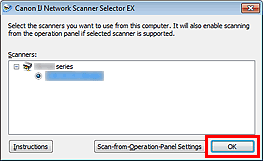
Return to the Scan-from-PC Settings screen and click OK.
Note-
If the machine you want to use is not displayed, check the following conditions and click OK to close the screen, then reopen it and select the machine.
- The MP Drivers is installed
- Network settings of the machine is completed after installing the MP Drivers
- Network communication between the machine and computer is enabled
If the machine is still not displayed, see "Problems with Network Communication."
