
Select One-click in the Navigation Mode screen to display the Custom Scan with One-click tab.
You can complete from scanning to saving, etc. at one time by simply clicking the corresponding icon.
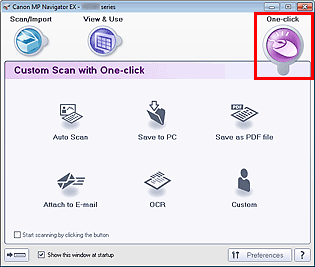
Auto Scan
Scan documents by automatically detecting the document type. File format is automatically set. Files are saved to a computer.
When you click this icon, the Auto Scan dialog box opens and you can specify the save settings.
Save to PC
Scan documents or photos and save them to a computer. The document type can be detected automatically.
When you click this icon, the Save dialog box opens and you can specify the scan/save settings.
Save as PDF file
Scan documents and save them as PDF files.
When you click this icon, the PDF dialog box opens and you can specify the scan/save and application settings.
Attach to E-mail
Scan documents or photos and attach them to e-mail.
When you click this icon, the Mail dialog box opens and you can specify the scan/save and e-mail software program settings.
OCR
Scan text documents then extract text in the image and display it in Notepad (included with Windows).
When you click this icon, the OCR dialog box opens and you can specify the scan/save settings.
Custom
Scan documents/photos and open them in a specified application. The document type can be automatically detected.
When you click this icon, the Custom dialog box opens and you can specify the scan/save and application settings.
Start scanning by clicking the button
Select this checkbox and click an icon to start scanning immediately.
 (Switch Mode)
Switches to One-click Mode. The One-click Mode screen appears.
Show this window at startup
Select this checkbox to open the Main Menu at startup. If this checkbox is not selected, the last used screen appears.
Preferences
The Preferences dialog box opens. In the Preferences dialog box, you can make advanced settings to MP Navigator EX functions.
 (Guide)
Opens this guide.
 Important
The following restrictions apply when you scan with Document Type set to Auto Mode in the Save dialog box or Custom dialog box.
When you want to convert text in the scanned image to text data, specify Document Type (do not select Auto Mode).


