
You can complete from scanning to saving, etc. at one time by simply clicking the corresponding icon.
Place the document on the Platen.
Start MP Navigator EX.
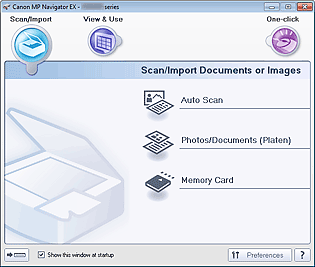
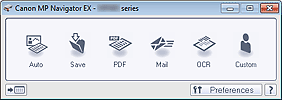
The MP Navigator EX Navigation Mode screen or One-click Mode screen appears.
Navigation Mode Screen
One-click Mode Screen
 Note
NoteSkip ahead to Step 4 if One-click Mode screen is open.
Click One-click.
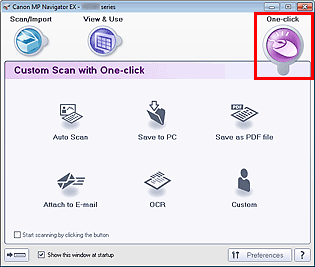
Click the corresponding icon.
Select Document Type according to the document to be scanned.
Set the document size and scanning resolution as required.
Start scanning.
Starts scanning.
NoteClick Cancel to cancel the scan.

