You can print the photo in online photo album with accessing the photo sharing site.
Before using the web service, see the terms of service.
 Notice for Web Service Printing
 Important
-
LAN connection with the machine and internet connection are required to use this function. Internet connection fees apply.
-
This function is available only when the IP version is set to IPv4.
-
Before you use this function, you have to get the account on the photo sharing site. For getting the account, refer to the photo sharing site.
-
Depending on the type of the photo, the photo may not be displayed on the LCD or printed.
 Note
Note-
Before you use this function, register the account on the photo sharing site to the machine.
-
Make sure that the machine is turned on.
-
Load 4" x 6" / 10 x 15 cm photo paper in the rear tray.
-
Select
 Advanced photo on the HOME screen.
 -
Select
 Online Album print, then press the OK button.
 -
Use the

 button to select the photo sharing site to use, then press the OK button.
The machine accesses on the photo sharing site, then the online albums are displayed on the LCD.
Note-
If you have not registered the account on the photo sharing site to the machine yet, the confirmation screen to register the account is displayed.
Use the
button to select Yes, then press the OK button to register the account.-
For details on how to register the account, see Registering the Account on Photo Sharing Site.
-
After the account registration is complete, the confirmation screen to save the login name or e-mail address and password is displayed. Use the
button to select the setting, then press the OK button. If you do not save the login name or e-mail address and password to the machine, select Do not save then press the OK button.
-
-
If many online album are uploaded on the photo sharing site or the communication situation is poor, online albums may not be displayed on the LCD correctly.
-
The created date display of the online album may differ between the LCD of the machine and the computer. Additionally, the display order may differ.
-
-
Use the

 button to select the online album, then press the OK button.
The photo in the online album is displayed.
Note-
If many online album are uploaded on the photo sharing site or the communication situation is poor, the photo may not be displayed on the LCD correctly.
-
The display order of photos in the online album may differ between the LCD of the machine and the computer.
-
-
Use the
button to select the photo you want to print. -
Specify the settings as necessary.
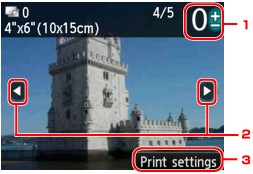
-
Number of copies
Specify by using the + or - button.
Note-
If you specify the number of copies for each photo, use the
button to display the photo you want to print and use the + or - button to specify the number of copies when the desired photo is displayed. -
You can also display the screen to specify the number of copies by pressing the OK button when the desired photo is displayed. When the screen to specify the number of copies is displayed, specify the number of copies by using the + or - buttons. Press the OK button to display the photo selection screen.
-
-
Selection photo
Select the photo you want to print by using the
button. -
Print settings
By pressing the right Function button, the print settings confirmation screen is displayed.
Use the
button to change the setting item, and the button to change the setting, then use the OK button to confirm the selection.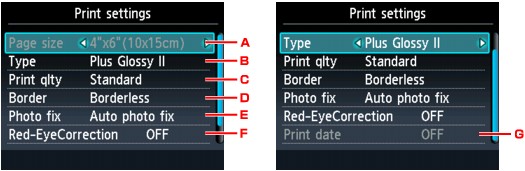
-
Page size
The page size is set to 4"x6"(10x15cm).
-
Type (Media type)
Select the media type of the loaded paper.
-
Print qlty (Print quality)
Select print quality according to the photo.
-
Border (Bordered/Borderless print)
Select bordered or borderless print.
-
Photo fix
When Auto photo fix is selected, the scene or person's face of a shot photo is recognized and the most suitable correction for each photo is made automatically. It makes a darkened face by backlight brighter to print. It also analyzes a scene such as scenery, night scene, person, etc. and corrects each scene with the most suitable color, brightness, or contrasts automatically to print.
Depending on the type of the photo, the photo may not be corrected.
Note-
As a default, photos on the photo sharing site are printed with auto correction applied.
-
If No correction is selected, photos are printed without correction.
-
-
Red-EyeCorrection
Corrects red eyes in portraits caused by flash photography.
Depending on the type of the photo, red eyes may not be corrected or parts other than the eyes may be corrected.
-
Print date
This setting is not available.
-
-
-
Press the Color button.
The machine starts printing.
