This section describes the machine's settings for web service.
 Registering the Account on Photo Sharing Site
Resetting the Web Service Settings
Before using the web service, see the terms of service.
Notice for Web Service Printing
Registering the Account on Photo Sharing Site
Register the account on the photo sharing site to the machine following the procedure below.
 Important
-
LAN connection with the machine and internet connection are required to use this function. Internet connection fees apply.
-
This function is available only when the IP version is set to IPv4.
-
Before you register the account to the machine, you have to get the account on the photo sharing site. For getting the account, refer to the photo sharing site.
-
You can register the login name or e-mail address up to 256 characters and register the password up to 80 characters. When you get the account on the photo sharing site, set the login name or e-mail address within 256 characters and set the password within 80 characters.
Set the login name, e-mail address, and password in letters and figures can be entered on the LCD of the machine.
-
Make sure that the machine is turned on.
-
Select
 Setup on the HOME screen.
 -
Select
 Web service setup, then press the OK button.
 -
Use the

 button to select Online Album connection setup, then press the OK button.
 -
Use the
button to select Register account, then press the OK button.When you delete the account, select Delete account, then press the OK button. After selecting the photo sharing site to delete the account and pressing the OK button, the confirmation screen to delete the account is displayed. To delete the account, select Yes and press the OK button.
-
Use the
button to select the photo sharing site to register the account, then press the OK button.The message for account information is displayed.
-
Check the message.
Multiple messages will be displayed. To display a next message, press the OK button.
-
When the confirmation screen for account management is displayed, press the left Function button.
 Note
Note-
By pressing the right Function button, you can display the message for account management policy.
-
-
Check the message to enter the login name or e-mail address, then press the OK button.
The screen to enter the login name or e-mail address is displayed.
Note-
If you already have registered the account, the login name or e-mail address is displayed on the screen.
-
-
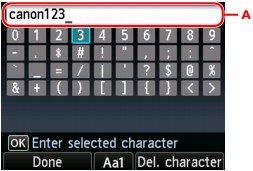
Enter the login name or e-mail address.
Use the following buttons to enter the login name or e-mail address.
- , ,
 , and
, and  buttons:
 -
Select a letter, number, or symbol.
- OK button:
-
Enter the selected character.
- Left Function button:
-
Press when entering the characters is complete.
- Center Function button:
-
Switch the input mode; Lowercase mode (e.g., abc), Uppercase mode (e.g., ABC), then Numeric mode (number)
- Right Function button:
-
Delete the entered character.
 Note
Note-
To edit entered characters, select the entry column (A) with the
button. Use the button to move the cursor under the position where you want to edit.
-
Check the entered login name or entered e-mail address, then press the left Function button.
-
Check the message to enter the password, then press the OK button.
The screen to enter the password is displayed.
-
Enter the password.
Enter the password as well as the login name or e-mail address.
Note-
Depending on the setting on the photo sharing site, entering the password may not be necessary.
-
-
Press the left Function button.
The machine accesses on the photo sharing site, then your account is confirmed.
After the confirmation of account is complete, the confirmation screen to save the login name or e-mail address and password is displayed.
-
Use the
button to select the setting, then press the OK button.The account registration is complete.
Resetting the Web Service Settings
This function resets all web service settings.
Reset the web service settings following the procedure below.
-
Make sure that the machine is turned on.
-
Select
 Setup on the HOME screen.
 -
Select
 Web service setup, then press the OK button.
 -
Use the
button to select Reset Web service setup, then press the OK button.The confirmation screen is displayed.
-
Use the
button to select Yes, then press the OK button.The web service setting is reset.
