
Scan photos and documents placed on the Platen.
Place the document on the Platen.
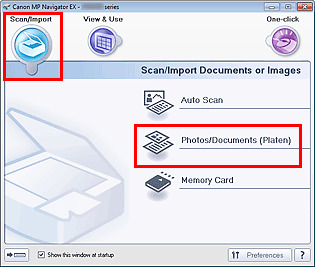
Start MP Navigator EX and open the Navigation Mode screen.
In Scan/Import, click Photos/Documents (Platen).
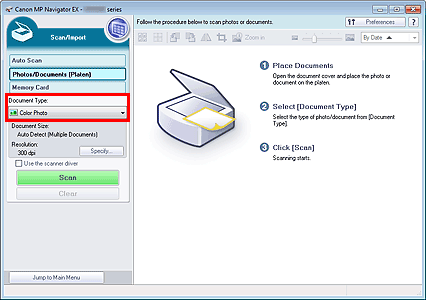
Select Document Type according to the document to be scanned.
 Note
NoteWhen you select Magazine(Color), the descreen function will be enabled and scanning takes longer than usual. To disable the descreen function, deselect the Descreen checkbox in the Scan Settings dialog box.
Select Text(OCR) to extract the text in the image and convert to editable text data using MP Navigator EX. This setting is not available when the Compress scanned images when transferring checkbox is selected on the "General Tab" of the Preferences dialog box.
Color scanning is not available for Text(OCR). To scan in color, open the OCR dialog box from the One-click Mode screen and scan with Color Mode set to Color.
Click Specify... to set the document size and scanning resolution as required.
When setting is completed, click OK.
 Scan Settings Dialog Box (Photos/Documents)
 Important
When scanning a large document (such as an A4 size photo), align its corner with the corner at the arrow (alignment mark) of the Platen and specify the document size in the Scan Settings dialog box.
Click Scan.
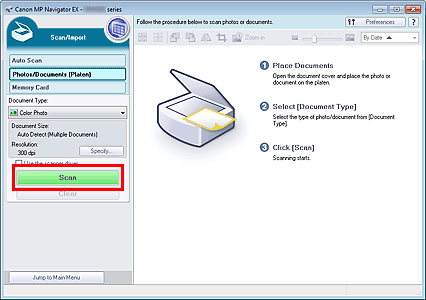
Starts scanning.
NoteClick Cancel to cancel the scan.
When scanning is completed, the Scan Complete dialog box opens. Select Scan or Exit. Select Scan to scan the next document, or select Exit to end.
The scanned images appear in the Thumbnail window.
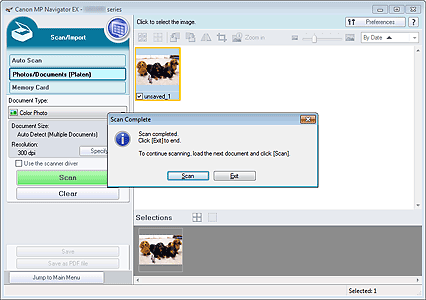
Edit the scanned images as required.
Use Edit Tools to rotate images, select a part of an image, etc.
See the Edit Tools in "Photos/Documents (Platen) Screen (Scan/Import Window)" for details.
NoteFirst select images to edit. (Selected images are outlined in orange.) Drag the mouse or use Shift + arrow keys to select multiple images. You can also select images by dragging and dropping them into the Selected Images area.
Save the scanned images.
