
Display images scanned with MP Navigator EX by category. You can classify images displayed in Unclassified automatically, and also create custom categories. You can drag and drop an image to move it from one category to another.
 Note
NoteIf you have classified the images in MP Navigator EX 2.0 or later and then upgrade MP Navigator EX to the latest version, the classification information on the second latest version is transferred upon initial startup. After the initial startup, the classification information cannot be transferred.
Scan documents into MP Navigator EX and save them, then open the View & Use window from the Navigation Mode screen.
NoteSee "Let's Try Scanning" to scan images into MP Navigator EX.
You can also select images saved on a memory card or computer.
In  (Sort by), select Categories.
Images are automatically sorted by category and appear in the Thumbnail window.
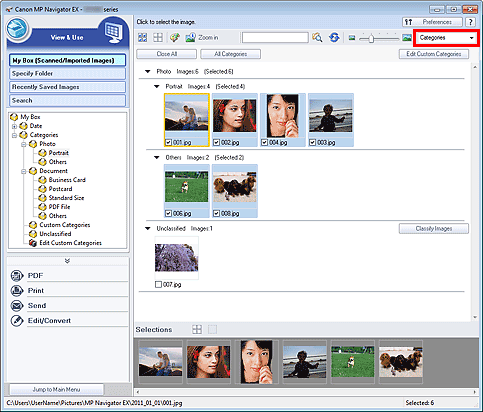
Images are sorted into the following categories.
Photo: Portrait, Others
Document: Business Card, Postcard, Standard Size, PDF File, Others
Custom Categories: Displays your custom categories.
To create custom categories, see "Creating Custom Categories."
Unclassified: Displays images that are not classified.
NoteClick Classify Images to classify images displayed in Unclassified automatically. Click Cancel to stop.
Classification may take time if there are many images to classify.
 Important
Even if you classify images saved in removable media such as USB flash drive and external hard disk, the classification information will be deleted once you remove the media. From the next time, the images are classified to Unclassified.
Images cannot be displayed by category when Recently Saved Images is selected in the View & Use window.
NoteSome images may not be detected correctly and thus may be classified into wrong categories. In that case, drag and drop the image to the correct category.
Images saved in network folders may not be classified.
You can search for images by category. See "Searching Images" for details.
In the View & Use window, sort images by category and click Edit Custom Categories.
The Edit Custom Categories dialog box opens.
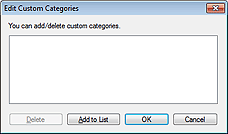
Click Add to List.
The Add Category dialog box opens.
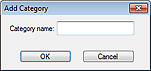
Enter Category name and click OK.
NoteYou can create up to 20 custom categories.
Up to 50 single-byte characters can be used for a category name.
Double-click a created category to open the Change Category Name dialog box in which you can change the category name.
Select a custom category and click Delete to delete it.


