
On the Scanner Button Settings tab, you can specify how to respond when scanning using the operation panel of the machine.
This section describes the settings available when Select Event is Save to PC.
See "Setting Items on the Operation Panel of the machine" for details on the items to be set using the operation panel of the machine.
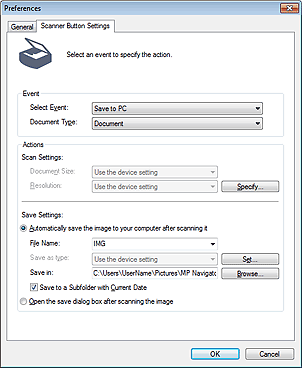
Select Event
Displays the scan modes that can be selected on the operation panel of the machine. Select Save to PC.
Document Type
Displays the document types that can be selected on the operation panel of the machine.
Document Size
Set this item using the operation panel of the machine.
Resolution
Set this item using the operation panel of the machine.
Specify...
Opens the Scan Settings dialog box in which you can make advanced scan settings.
Automatically save the image to your computer after scanning it
Select this to save the images to your computer as specified after scanning them.
The File Name and Save in settings will be displayed.
 Important
If you select this function, you will not be able to set passwords for PDF files.
File Name
Enter the file name of the image to be saved (up to 64 characters).
Save as type
Set this item using the operation panel of the machine.
Set...
The Auto Save Settings dialog box opens and you can specify the file format in which to save images automatically and other advanced save settings. Select a file format for items detected as documents, and for items detected as photos.
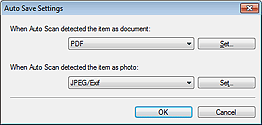
When JPEG/Exif is Selected
Click Set... to specify a compression type for JPEG files. Select High(Low Compression), Standard, or Low(High Compression).
ImportantThis setting is not available when the Compress scanned images when transferring checkbox is selected on the "General Tab" of the Preferences dialog box.
When PDF is Selected
Click Set... to make advanced settings for creating PDF files. See "PDF Settings Dialog Box" for details.
The Save Settings dialog box opens and you can make advanced settings for saving images scanned using the operation panel of the machine as JPEG or PDF files.
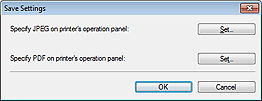
Specify JPEG on printer's operation panel
Click Set... to specify a compression type for JPEG files. Select High(Low Compression), Standard, or Low(High Compression).
ImportantThis setting is not available when the Compress scanned images when transferring checkbox is selected on the "General Tab" of the Preferences dialog box.
Specify PDF on printer's operation panel
Click Set... to make advanced settings for creating PDF files. See "PDF Settings Dialog Box" for details.
ImportantUse the operation panel of the machine to set the compression type for saving.
Save in
Displays the folder in which to save the scanned images. To change the folder, click Browse... to specify another one.
By default, the scanned images are saved in the following folders.
Windows 7: MP Navigator EX folder in My Pictures folder
Windows Vista: MP Navigator EX folder in Pictures folder
Windows XP: MP Navigator EX folder in My Pictures folder
Save to a Subfolder with Current Date
Select this checkbox to create a subfolder in the folder specified in Save in with the current date and save scanned files in it. A subfolder with a name such as "2011_01_01" (Year_Month_Date) will be created.
If this checkbox is not selected, files are saved directly in the folder specified in Save in.
Open the save dialog box after scanning the image
Select this to open the Save dialog box after scanning the images and specify the save settings such as destination folder, file name and Exif information.
 Note
NoteTo set passwords for PDF files, select Open the save dialog box after scanning the image. After scanning, you can set the passwords in the Save as PDF file dialog box.


