
This mode allows you to scan easily by simply placing documents on the Platen and clicking a button.
On the Auto Scan Mode tab, documents are automatically detected. You do not need to specify cropping frames or make image corrections.
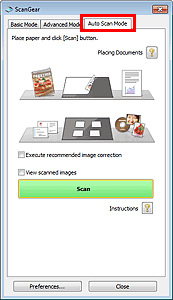
Supported Documents
Photos, postcards, business cards, magazines, newspapers, text documents, and BD/DVD/CD.
 Important
The following types of documents cannot be scanned correctly. In that case, specify the document type or size on the Basic Mode tab or the Advanced Mode tab and scan.
- A4 size photos
- Text documents smaller than 2L (5 inches x 7 inches) (127 mm x 178 mm), such as paperback pages with the spine cut off
- Documents printed on thin white paper
- Long narrow documents such as panoramic photos
Reflective disc labels may not be scanned properly.
Place documents correctly according to the type of document to be scanned. Otherwise, documents may not be scanned correctly.
See "Placing Documents (When Scanning from a Computer)" for details on how to place documents.
 Note
NoteScan from the "Basic Mode Tab" or "Advanced Mode Tab" to reduce moire.
Placing Documents 
"Placing Documents (When Scanning from a Computer)" appears.
Execute recommended image correction
Apply suitable corrections automatically based on the document type.
ImportantWhen this checkbox is selected in ScanGear (scanner driver) started from MP Navigator EX, the files can be saved in JPEG/Exif or PDF format only.
Scanning may take longer than usual when this checkbox is selected.
You can set this setting when Recommended is selected on the Color Settings tab of the Preferences dialog box.
The color tone may change from the source image due to corrections. In that case, deselect the checkbox and scan.
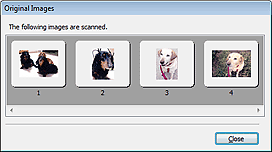
View scanned images
Display the thumbnails of scanned images in a different window.
Scan
Scanning starts.
NoteWhen scanning starts, the progress will be displayed. Click Cancel to cancel the scan.
When scanning is completed, a dialog box prompting you to select the next action may open. Follow the prompt to complete. For details, see Status of ScanGear dialog after scanning in "Scan Tab" (Preferences dialog box).
Instructions
This page appears.
Preferences...
The Preferences dialog box opens and you can make scan/preview settings.
Close
Closes ScanGear.


