
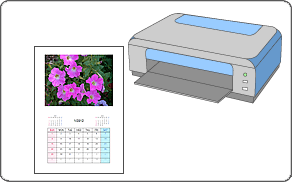
Easy-PhotoPrint EX allows you to create your own calendar using your favorite photos.
Start Easy-PhotoPrint EX.
Click Calendar from Menu.
The Page Setup screen appears.
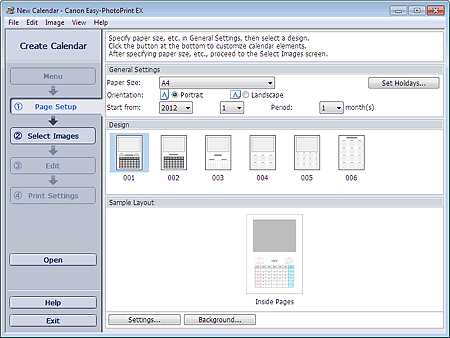
Set Paper Size, Orientation, etc. in the General Settings section.
 Note
NoteSee Help on the paper size that can be selected.
You can set holidays to your calendar.
Select a layout for Design.
If necessary, make advanced settings on the calendar and set the background.
NoteYou can customize the calendar display (font colors of the dates and days of the week, position and size of the calendar, etc.).
You can paint the background in a single color or paste an image file to it in the Change Background dialog box. To display the Change Background dialog box, click Background....
Click Select Images in the step button area on the left side of the screen.
The Select Images screen appears.
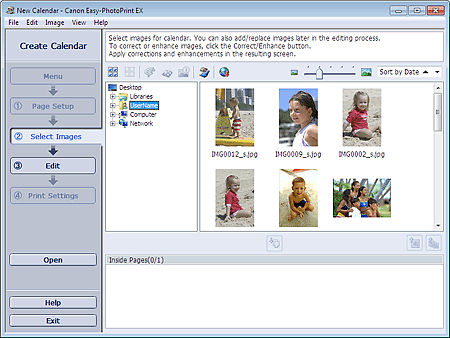
Select the folder that contains the image you want to print from the Folder Tree area.
The images in the folder will be displayed as thumbnails (miniatures).
NoteYou can also use still images captured from videos.
You can also use images downloaded from photo sharing sites on the Internet.
Select the image(s) you want to print and click  (Import to Inside Pages).
The selected image(s) is (are) displayed in the selected image area.
You can also select the image(s) you want to print by dragging it (them) into the selected image area.
NoteTo delete an image in the selected image area, select the image you want to delete and click  (Delete Imported Image).
To delete all images from the selected image area, click  (Delete All Imported Images).
Click Edit in the step button area on the left side of the screen.
The Edit screen appears.
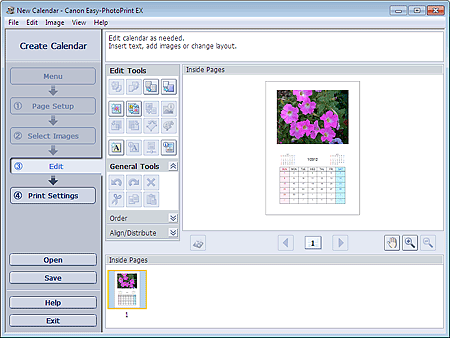
Edit the calendar if necessary.
 Important
The edit information will be discarded if you exit Easy-PhotoPrint EX without saving the edited calendar. It is recommended that you save the item if you want to edit it again.
Click Print Settings in the step button area on the left side of the screen.
The Print Settings screen appears.
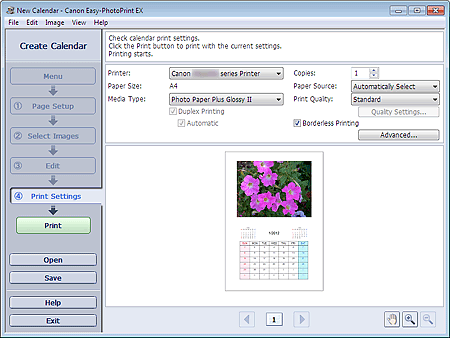
Set Media Type, Paper Source, etc. according to the printer and paper to be used.
NoteThe media types may vary depending on the printer and the paper size.
Duplex Printing appears if the selected printer and media type support duplex printing. Select this checkbox to print on both sides of the paper.
Automatic appears if you select the Duplex Printing checkbox after selecting a printer that supports automatic duplex printing and media type that supports duplex printing. Select this checkbox to print on both sides of the paper automatically.
The paper sources may vary depending on the printer and the media type.
You can set a custom print quality level in the Print Quality Settings dialog box. To display the Print Quality Settings dialog box, select Custom for Print Quality and click Quality Settings....
You can specify the print range and the amount of extension for borderless printing in the Print Settings dialog box. To display the Print Settings dialog box, click Advanced....
Click Print in the step button area on the left side of the screen.
NoteYou can correct or enhance the selected image before printing.
See Help for details on each screen.


