Front View
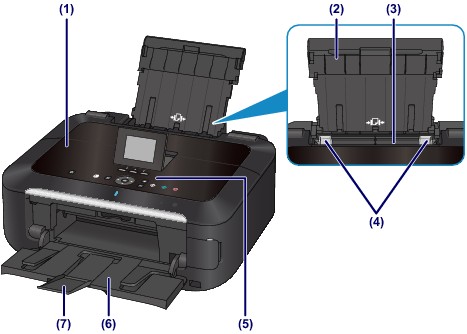
(1) document cover
Open to load an original on the platen glass.
(2) paper support
Raise and tip back to load paper in the rear tray.
(3) rear tray
Load photo paper or envelopes which you can use on the machine. Two or more sheets of the same size and type of paper can be loaded at the same time, and fed automatically one sheet at a time.
 Loading Photo Paper in the Rear Tray
Loading Envelopes in the Rear Tray
(4) paper guides
Slide to align with both sides of the paper stack.
(5) operation panel
Use to change the settings of the machine or to operate it.
(6) paper output tray
Opens automatically when printing or copying starts and printed paper is ejected.
(7) output tray extension
Open to support the printouts. Open it when printing or copying.
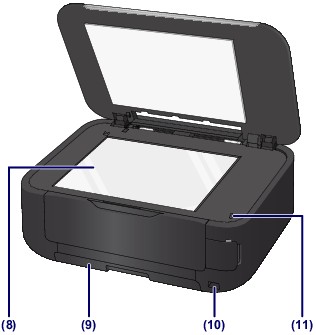
(8) platen glass
Load an original to copy or scan.
(9) cassette
Load A4, B5, A5, or Letter-sized plain paper and insert it into the machine. Two or more sheets of the same size of plain paper can be loaded at the same time, and fed automatically one sheet at a time.
Loading Plain Paper in the Cassette
(10) direct print port
Connect a PictBridge compliant device such as a digital camera or the optional Bluetooth Unit BU-30* to print directly.
Printing Photographs Directly from a PictBridge Compliant Device
You can also insert a USB flash drive to this port.
* The Bluetooth Unit is not available in some countries or regions depending on the local laws and regulations. For details, contact the service center.
 Warning Warning
|

 Important Important
|
(11) Scanning Unit Detection button
Locks the scanning unit / cover while the document cover is open. This button is pressed down when the document cover is closed, so that you can open the scanning unit / cover. (You do not need to touch this button.)
