
Scan documents easily by automatically detecting the document type.
 Important
Supported document types are photos, postcards, business cards, magazines, newspapers, text documents, and BD/DVD/CD. To scan other documents, specify the document type.
Make sure that the machine is turned on.
Place the document on the Platen.
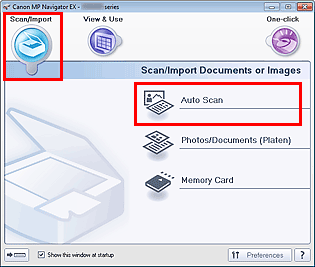
Start MP Navigator EX and open the Navigation Mode screen.
In Scan/Import, click Auto Scan.
Click Scan.
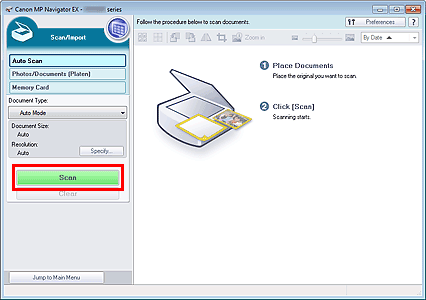
A message about placing documents appears. Click Instructions to open this guide, or click OK to start scanning.
 Note
NoteClick Cancel to cancel the scan.
Set from Specify... if you want to apply suitable corrections based on the document type.
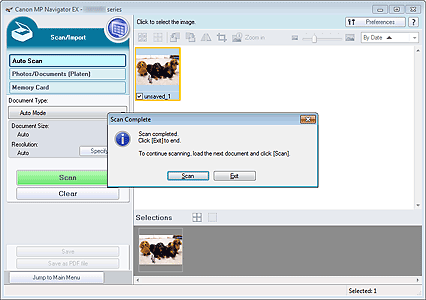
When the Scan Complete dialog box opens, select Scan or Exit.
Select Scan to scan the next document, or select Exit to end.
The scanned images appear in the Thumbnail window.
 Note
NoteUse Edit Tools on the Toolbar to rotate or trim scanned images.
Save the scanned images.

